
A plain-text task manager for Obsidian · Mac + iPhone
A powerful task manager,
powered by plain text.
ObsiFocus gives you the tools of a serious task manager: Triage, Forecast, projects with Review, and alarms that nag until it’s done. It reads and writes your Obsidian vault directly. Every task is a plain Markdown line in the Tasks plugin’s format, or a whole note. No database, no account, no lock-in.
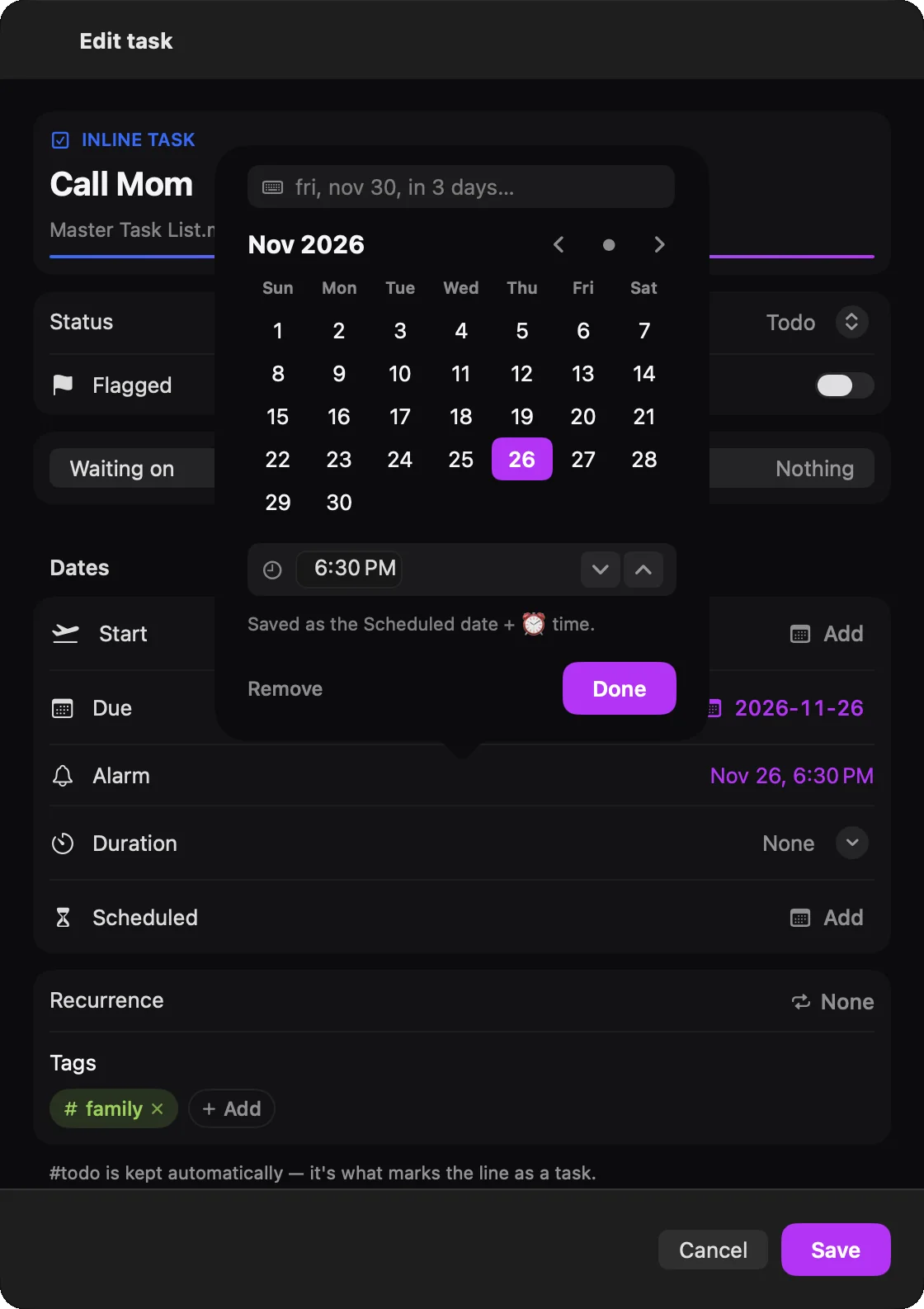
- [ ] #todo Call Mom ⏰ 18:30 📅 2026-11-26 #familyThat line is the whole task: an alarm, a due date and a tag.
Delete the app and your system keeps working.
Powerful
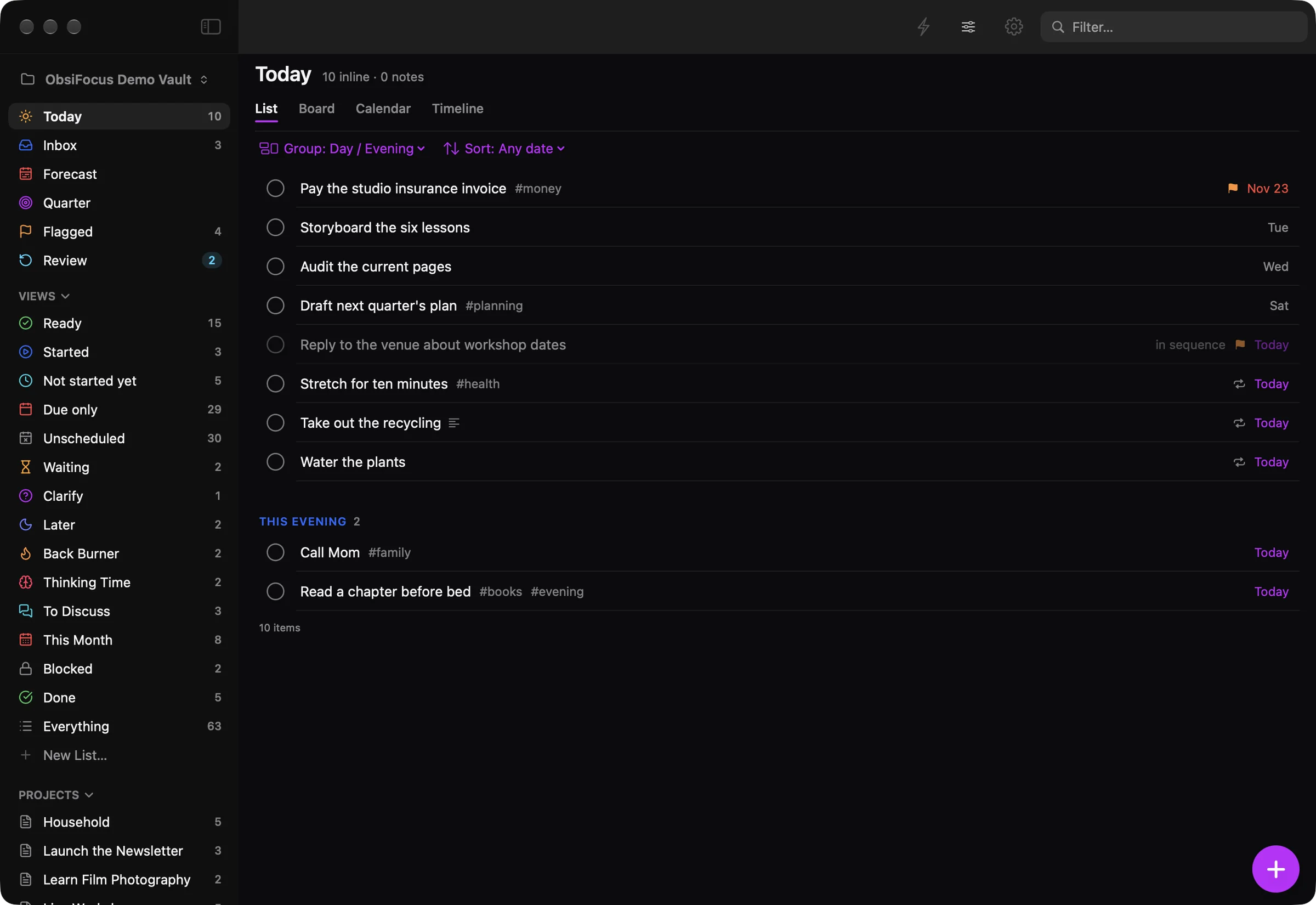
Triage one card at a time, a week-ahead Forecast, List, Board, Calendar and Timeline layouts, sequential projects with scheduled Reviews, Focus, and alarms that nag until it’s done.
Plain text
Every task is one line of Markdown in the Tasks plugin’s format, or a whole note with properties. Read and edit it in Obsidian or any text editor.
Yours
No database, no account, no sync service of its own. Your files sync the way they already do, through Obsidian Sync or iCloud Drive. Delete the app and the system keeps working.
Capture
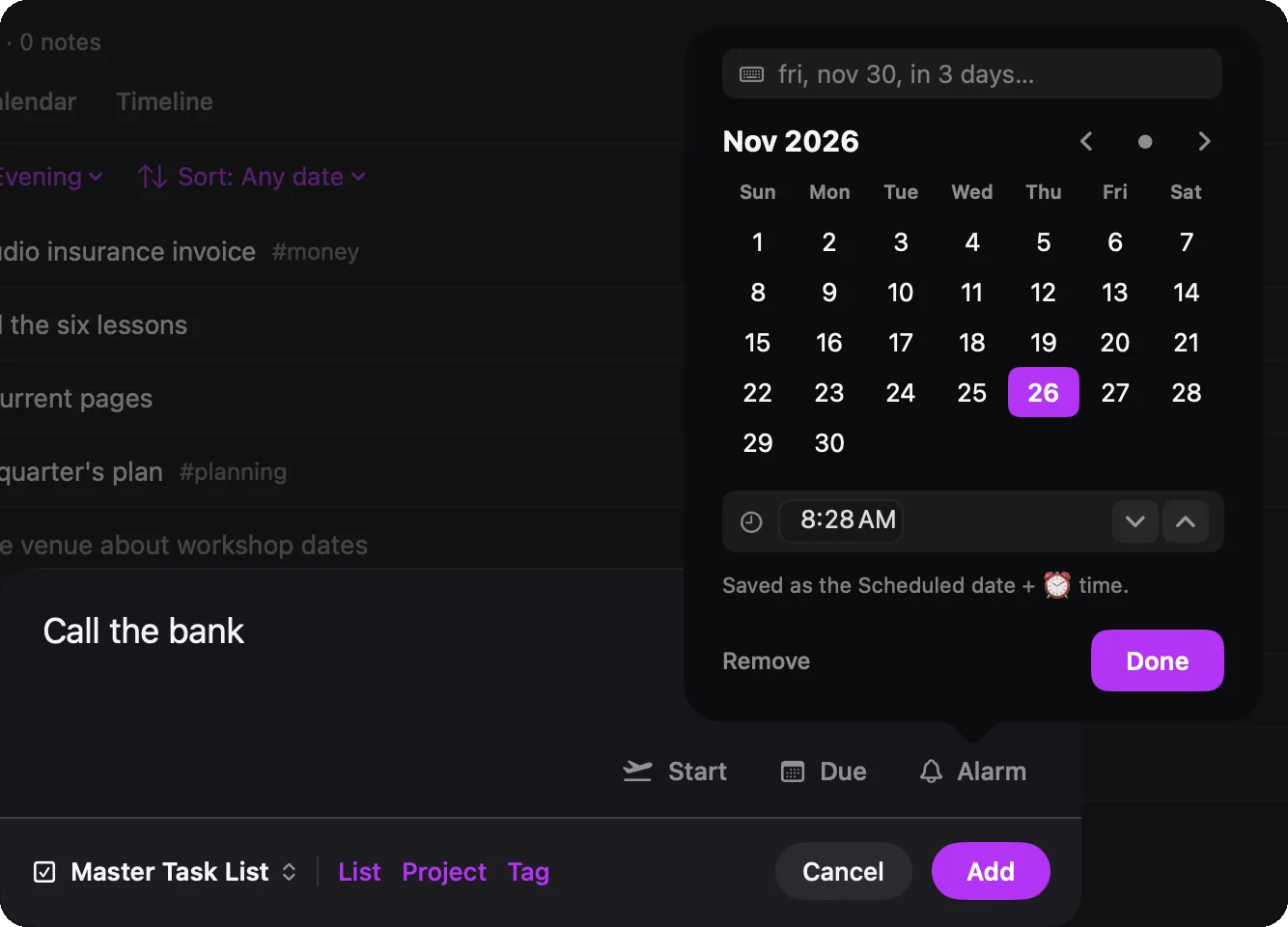
Type it the way you’d say it.
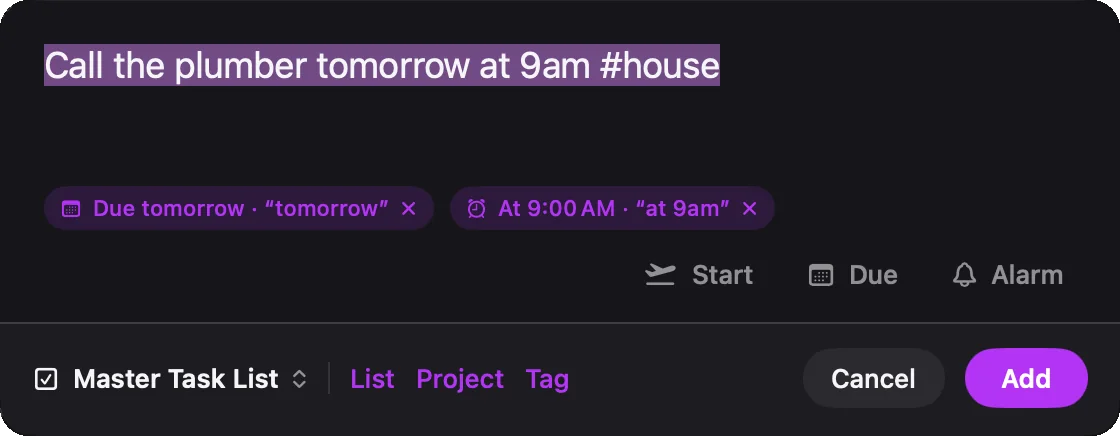
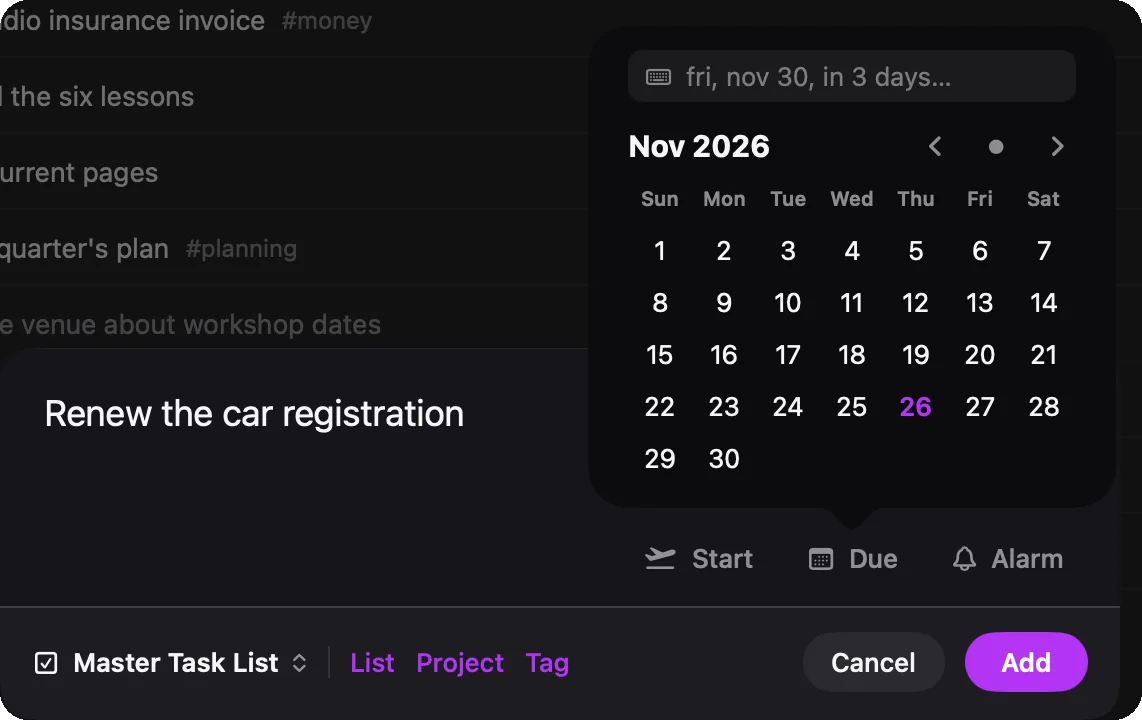
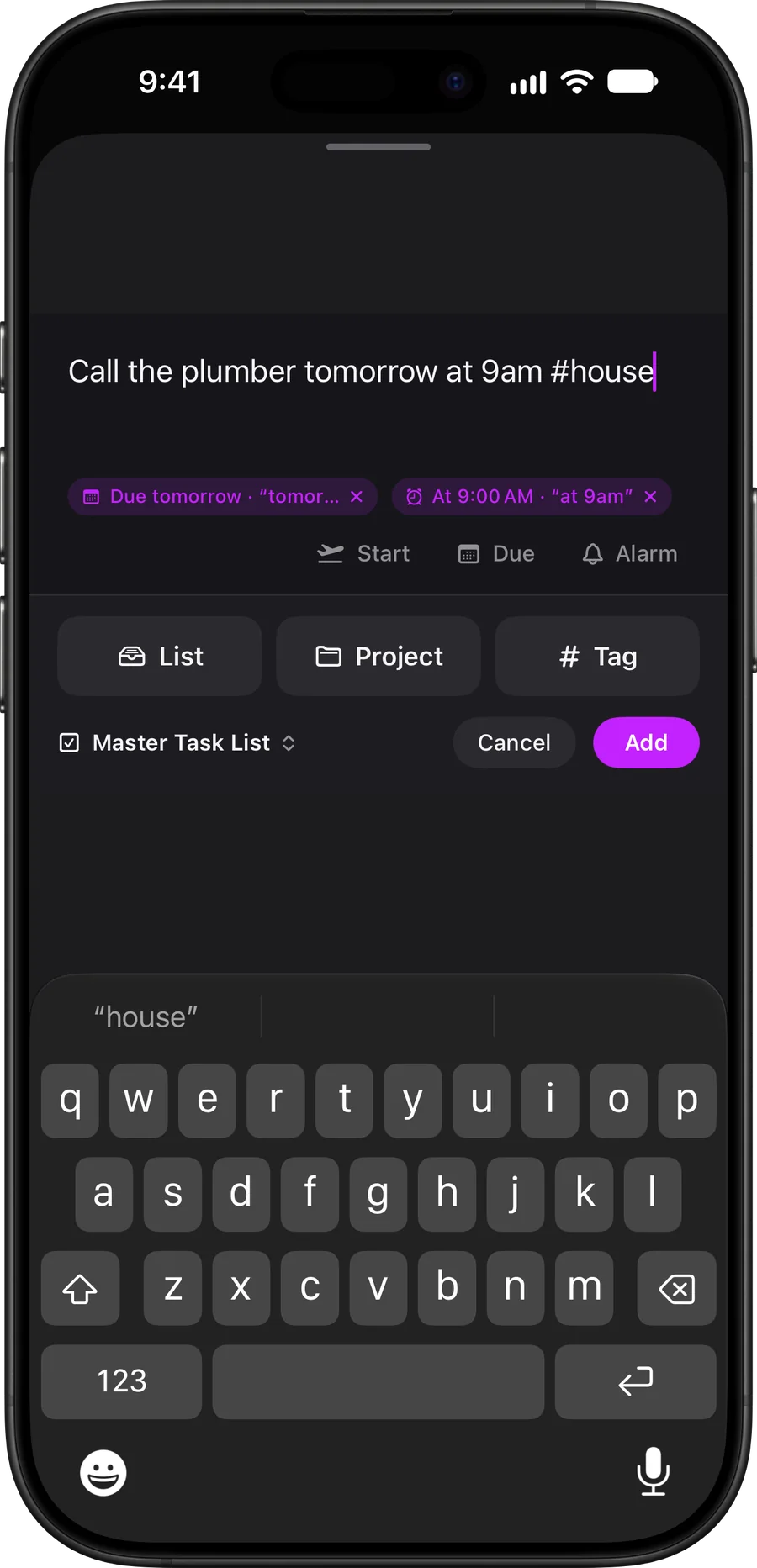
Press ⌘N in ObsiFocus, or ⌥Space from any app on your Mac. ObsiFocus spots dates and times as you type, shows them as chips, and takes the phrase out of the title when you save.
- “Call the plumber tomorrow at 9am” becomes a task due tomorrow with a 9:00 AM alarm
- Understands today, fri, next week, in 3 days, nov 30, 11/30, eom, 3pm and noon
- ⌘L ⌘P ⌘T file it in a list, project or tag. Type a new project name and ObsiFocus creates the project note
- Away from your Mac: Siri (“Add a task to ObsiFocus”), the Share sheet, or an Apple Reminders list ObsiFocus imports from, so your Watch and CarPlay can capture too
Use Quick Capture? It picks up ObsiFocus’s List, Project, Tag and Alarm buttons, and both apps share one set of capture settings.
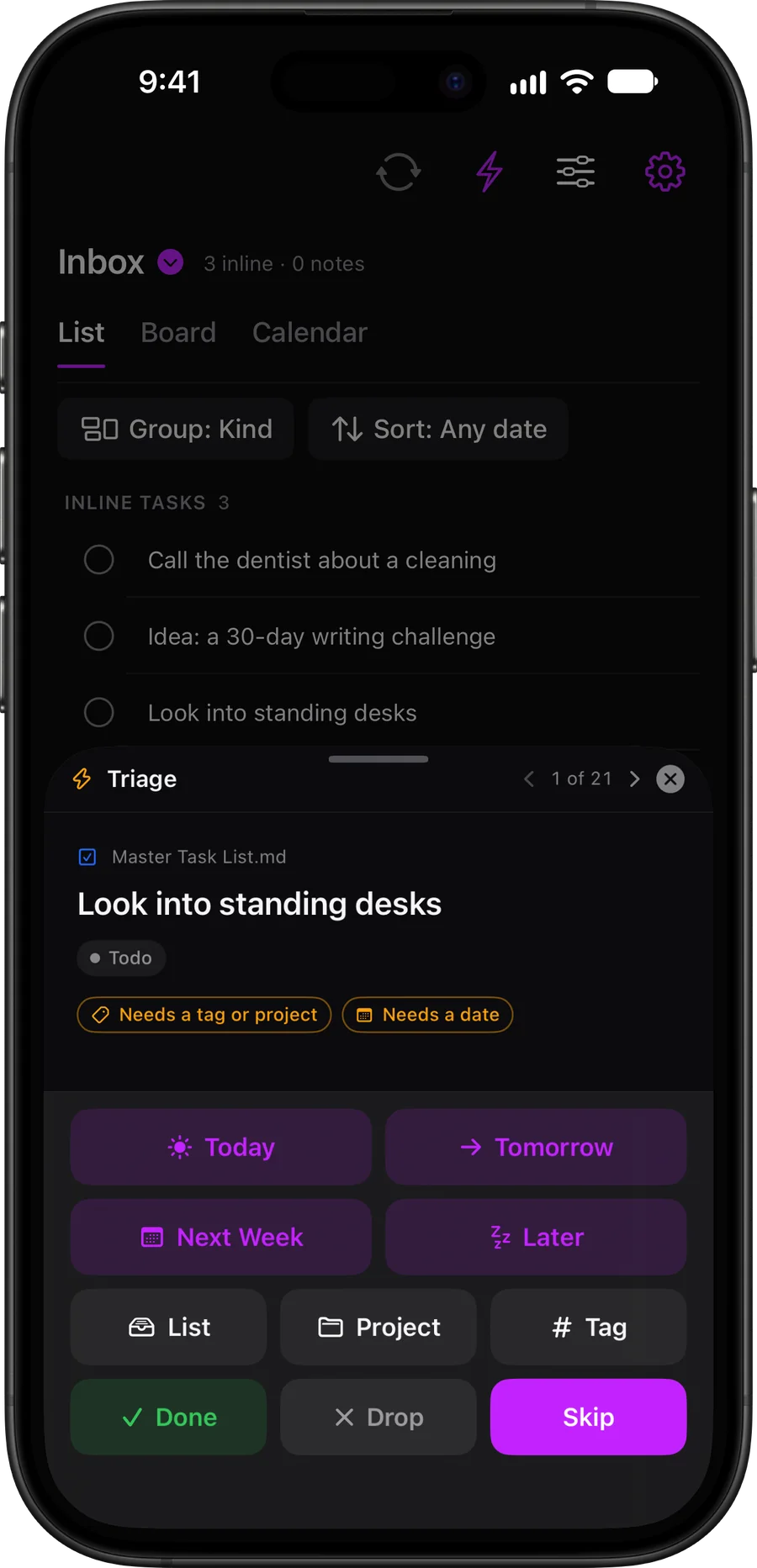
Triage
Clear the pile one card at a time.
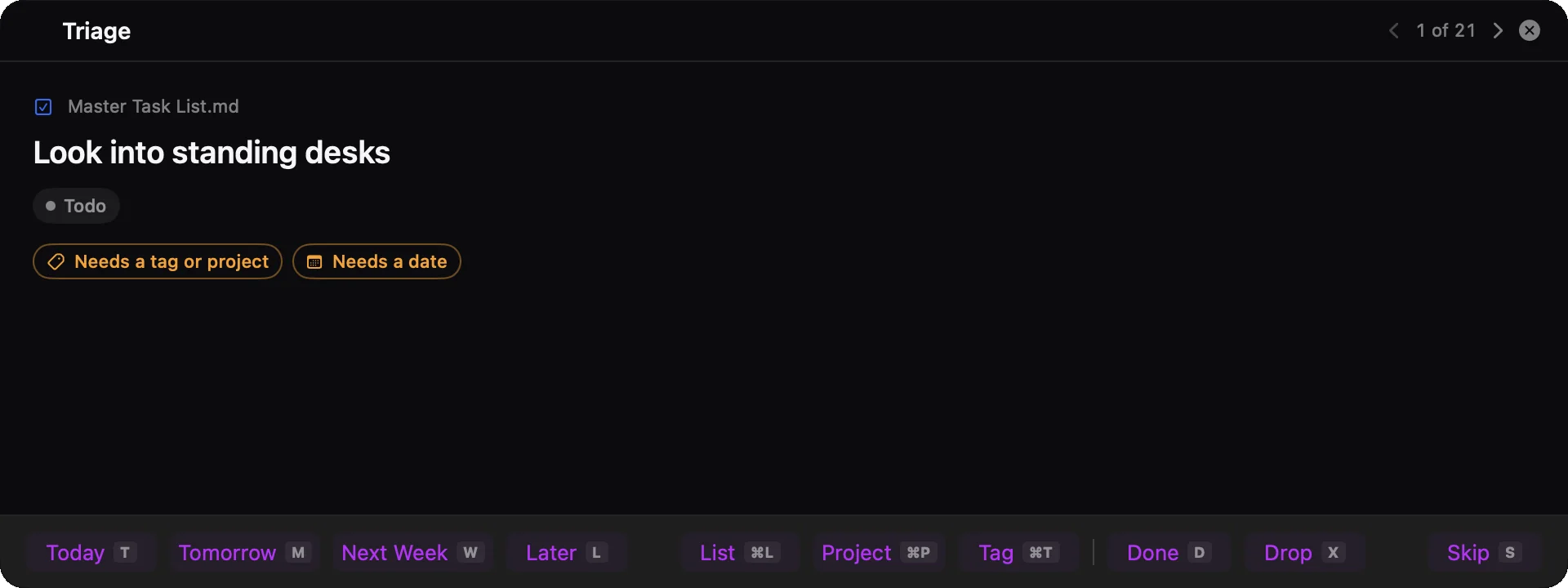
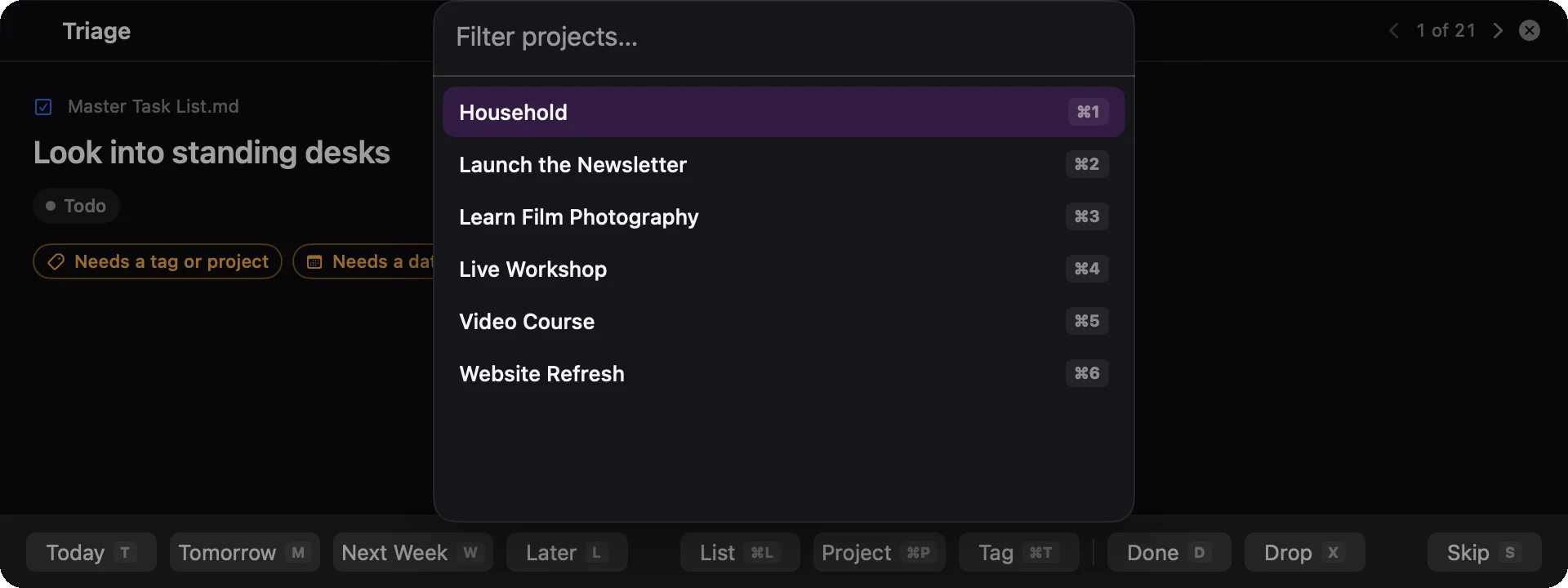
Triage walks through every open task that doesn’t have a home or a date yet. Each card says what it’s missing, and one key settles it. Open it with ⇧⌘T.
- TMWL Today, Tomorrow, Next Week or Later
- DXS Done, Drop (marked cancelled, never deleted) or Skip
- ⌘L ⌘P ⌘T open the list, project and tag pickers. Type a new project name to create it on the spot
- A task is settled once it’s filed in a list, or has both a tag or project and a date
- Today, Tomorrow and Next Week set the due date, or the start date if you prefer
- On iPhone it’s big buttons, and you swipe the card left or right
Today · Forecast
Today, tonight and the week ahead.
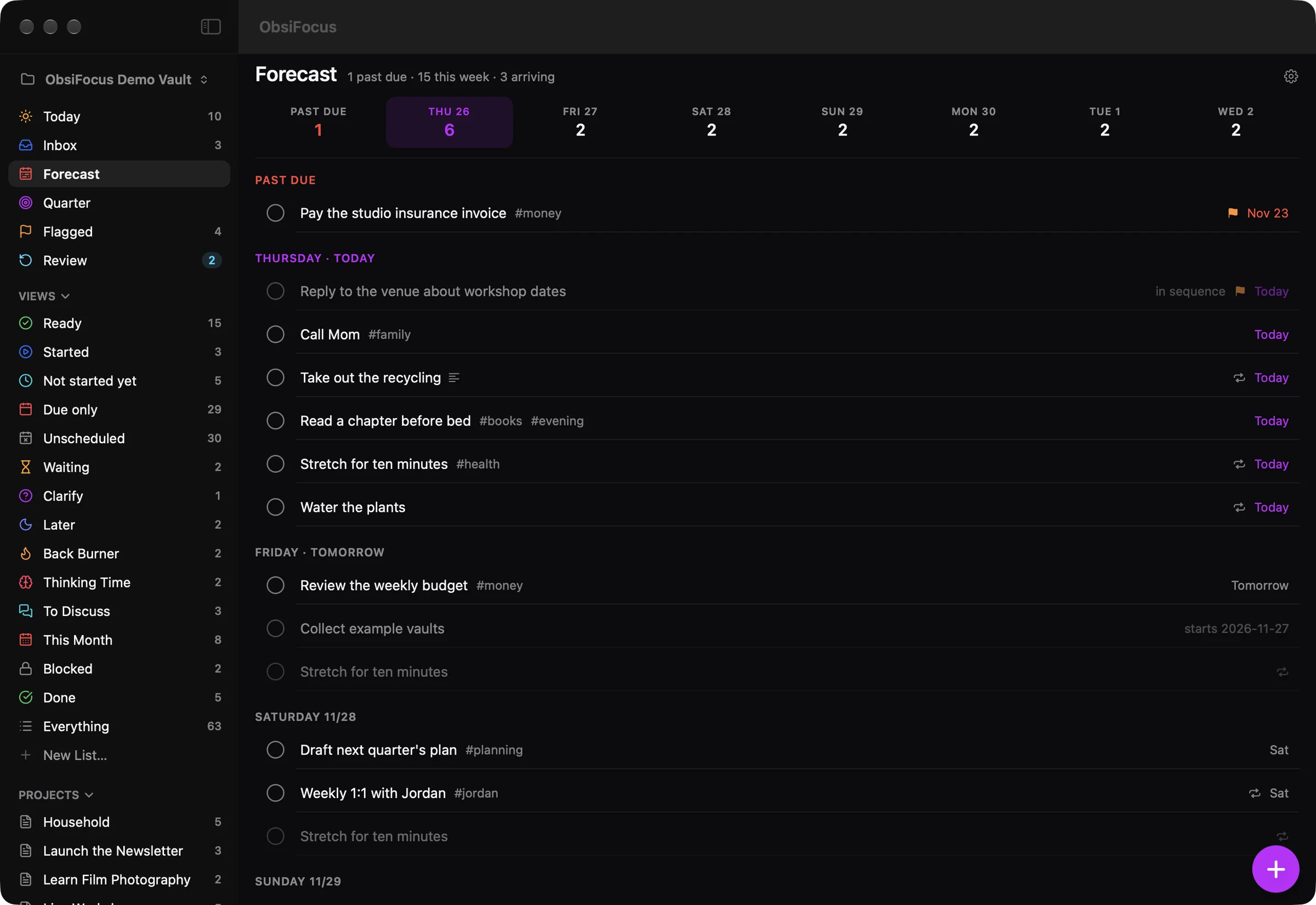
Today shows everything starting, scheduled or due today, plus anything overdue. Tasks with an alarm at 5 PM or later, or tagged #evening, wait on the This Evening shelf.
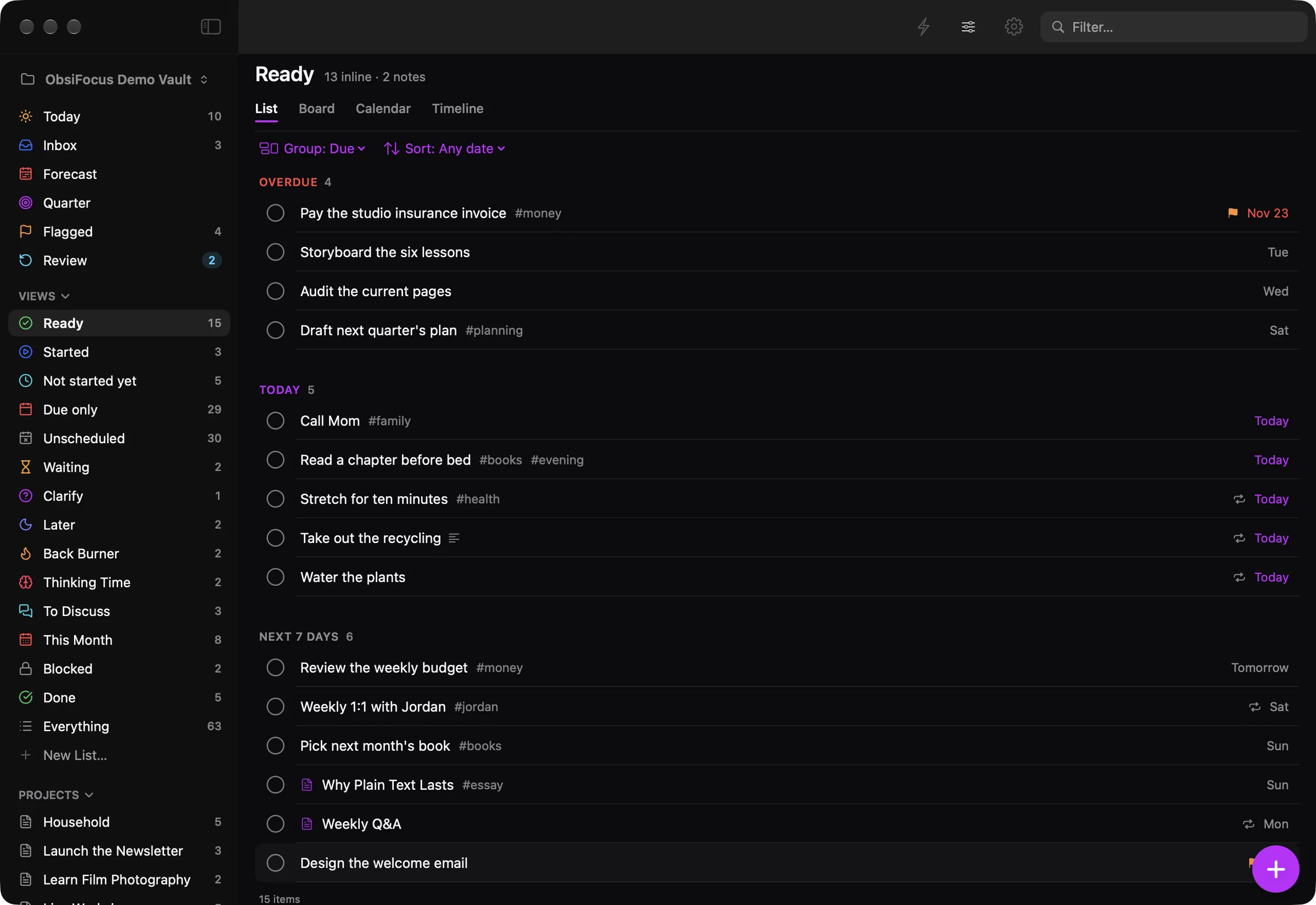
- Forecast is the week in one scroll: Past Due, then each day with its calendar events, the tasks due, and the tasks starting that day
- Faint previews show where your repeating tasks will land
- Drag a task onto another day to move its date
- Shows 7 days ahead by default, anywhere from 3 to 14
- Inbox catches anything with no tags and no date yet
- Flagged collects your high and urgent priority tasks
Layouts
Every view, four ways.
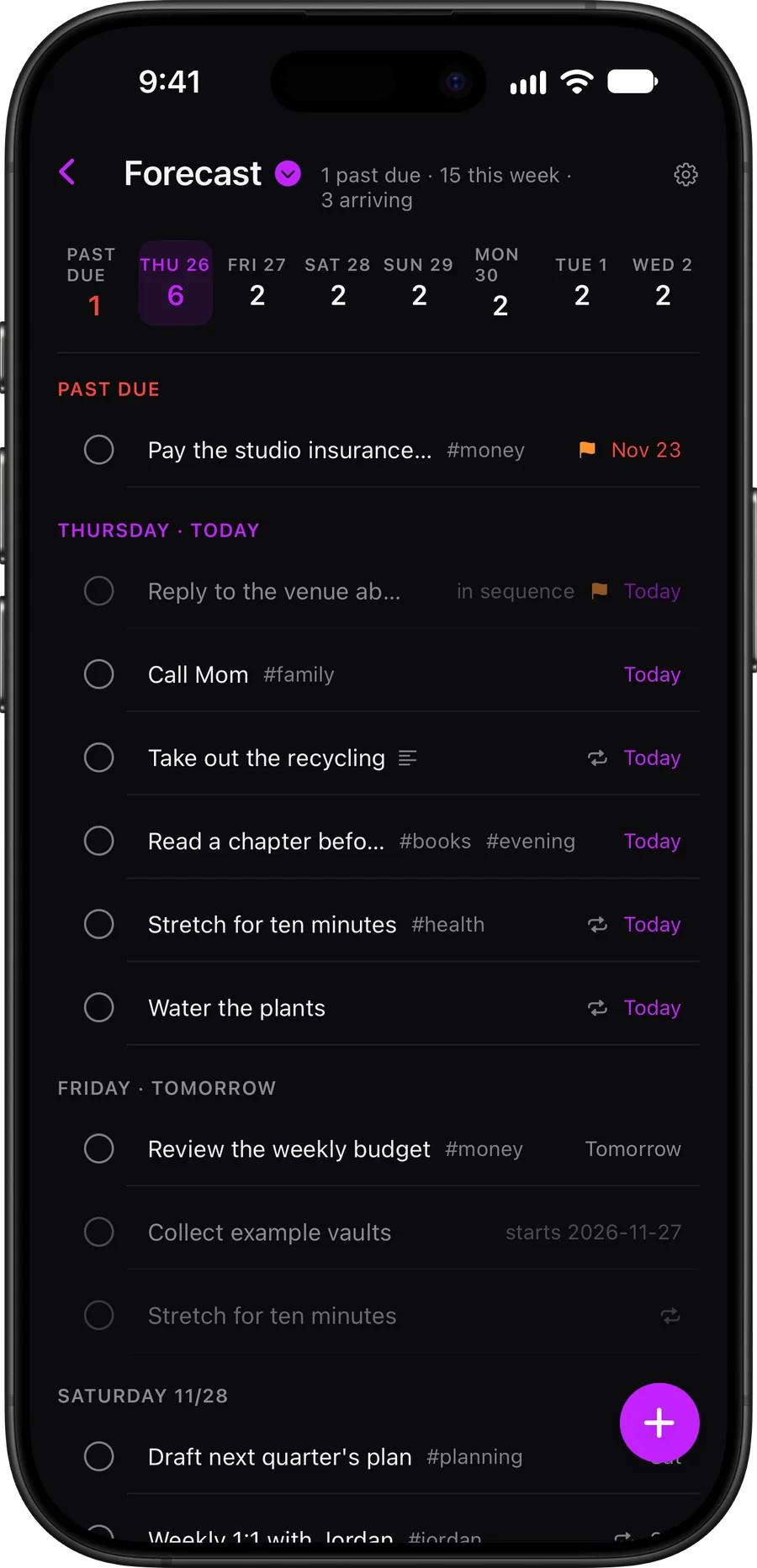
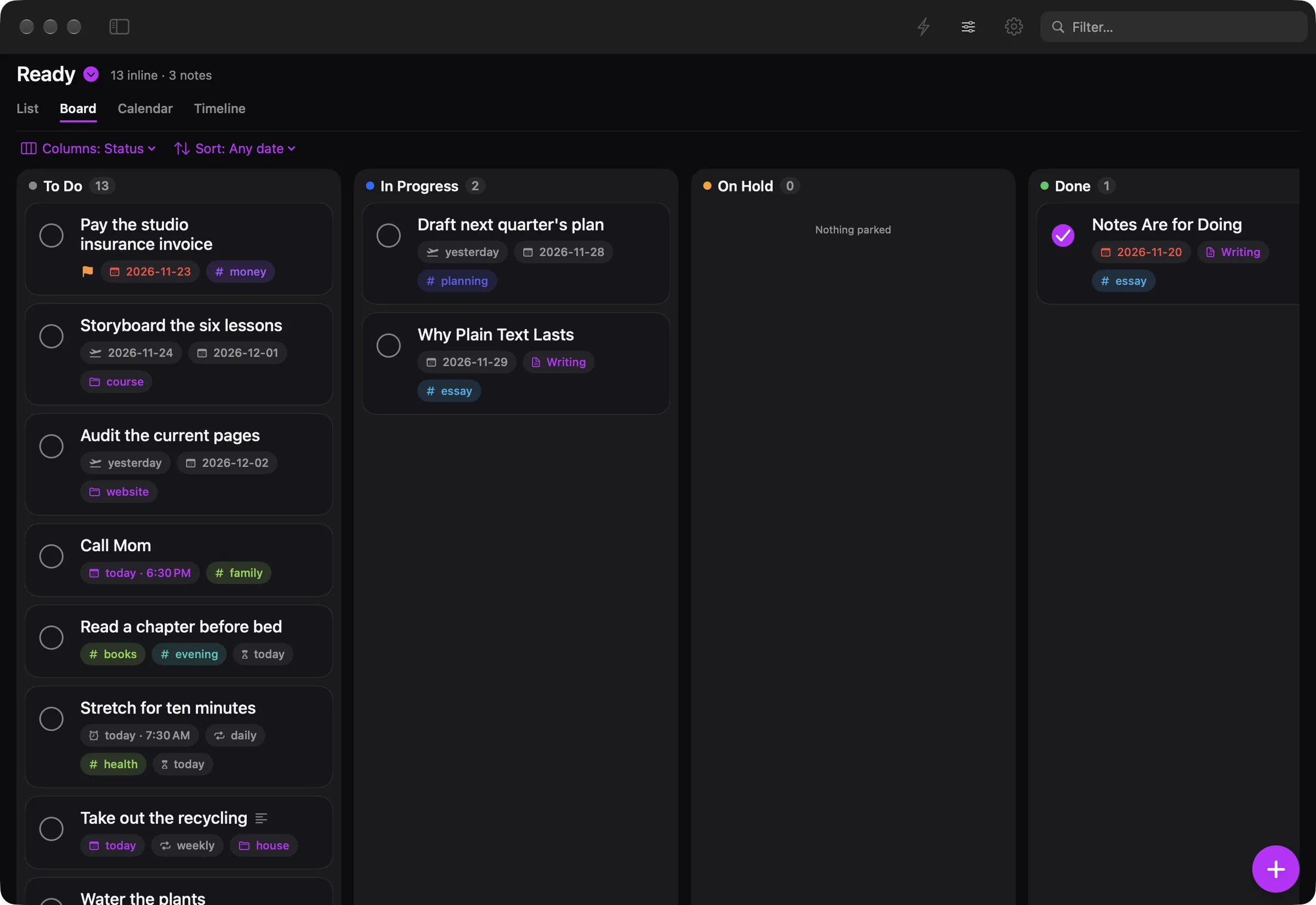
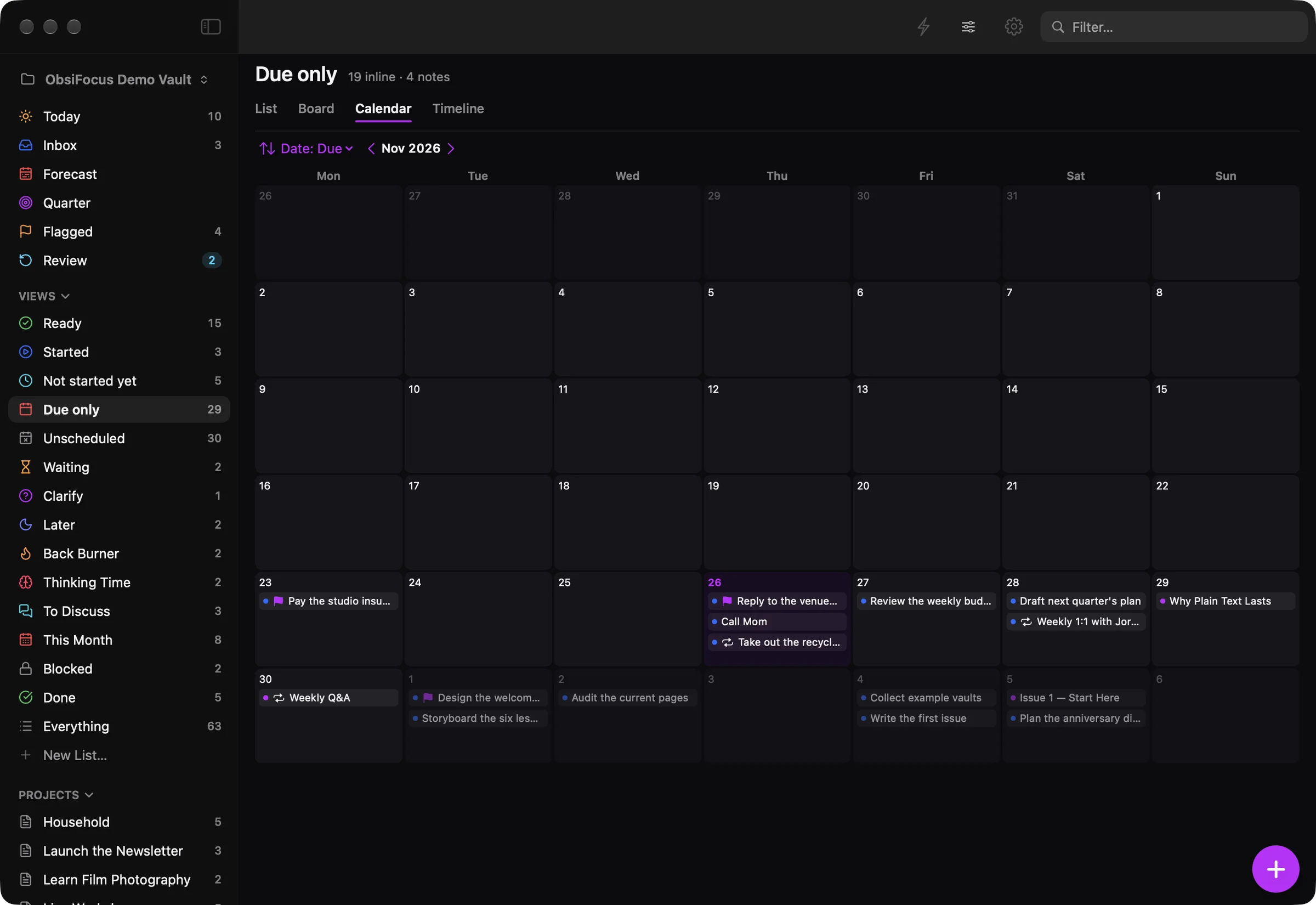
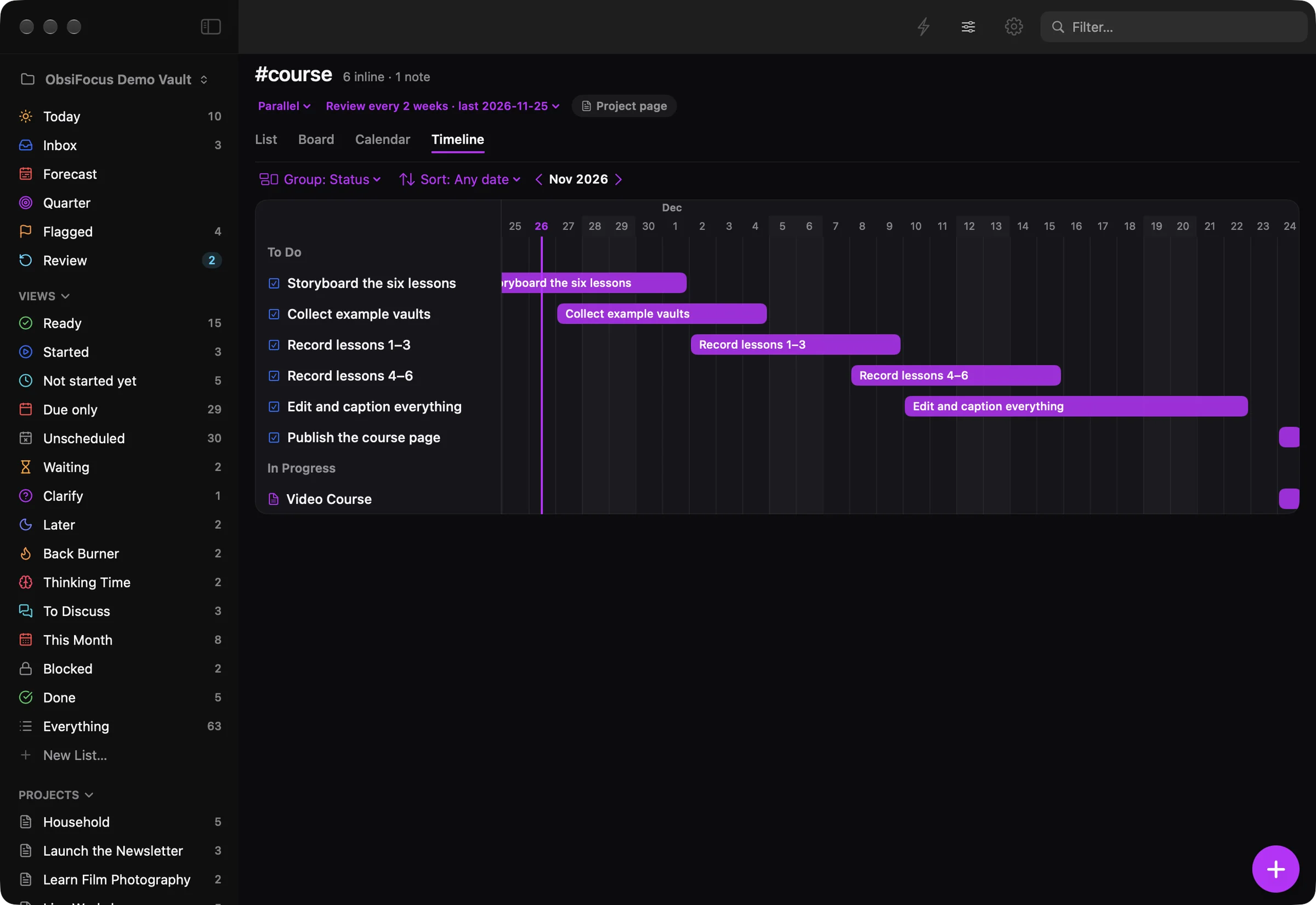
Switch any view between List, Board, Calendar and Timeline with ⌘1–⌘4. Each view remembers its own layout.
- Board columns by status, due date, project or tag. Drop a card to change it
- Drag a task to another day on the Calendar, or a bar on the Timeline. Drag a bar’s end to change just its start or due date
- 15 built-in views, from Ready and Waiting to Blocked and This Month
- Build your own lists from All, Any or None rules, with a live count as you go
- Select many tasks (⇧⌘S) to flag, date, set the status of, or complete them together
- Drag a row or card and the others slide aside to make room; cards travel between Board columns too. The order is saved in your vault, so it’s the same on every device
Projects · Review · People
Projects that don’t go stale.
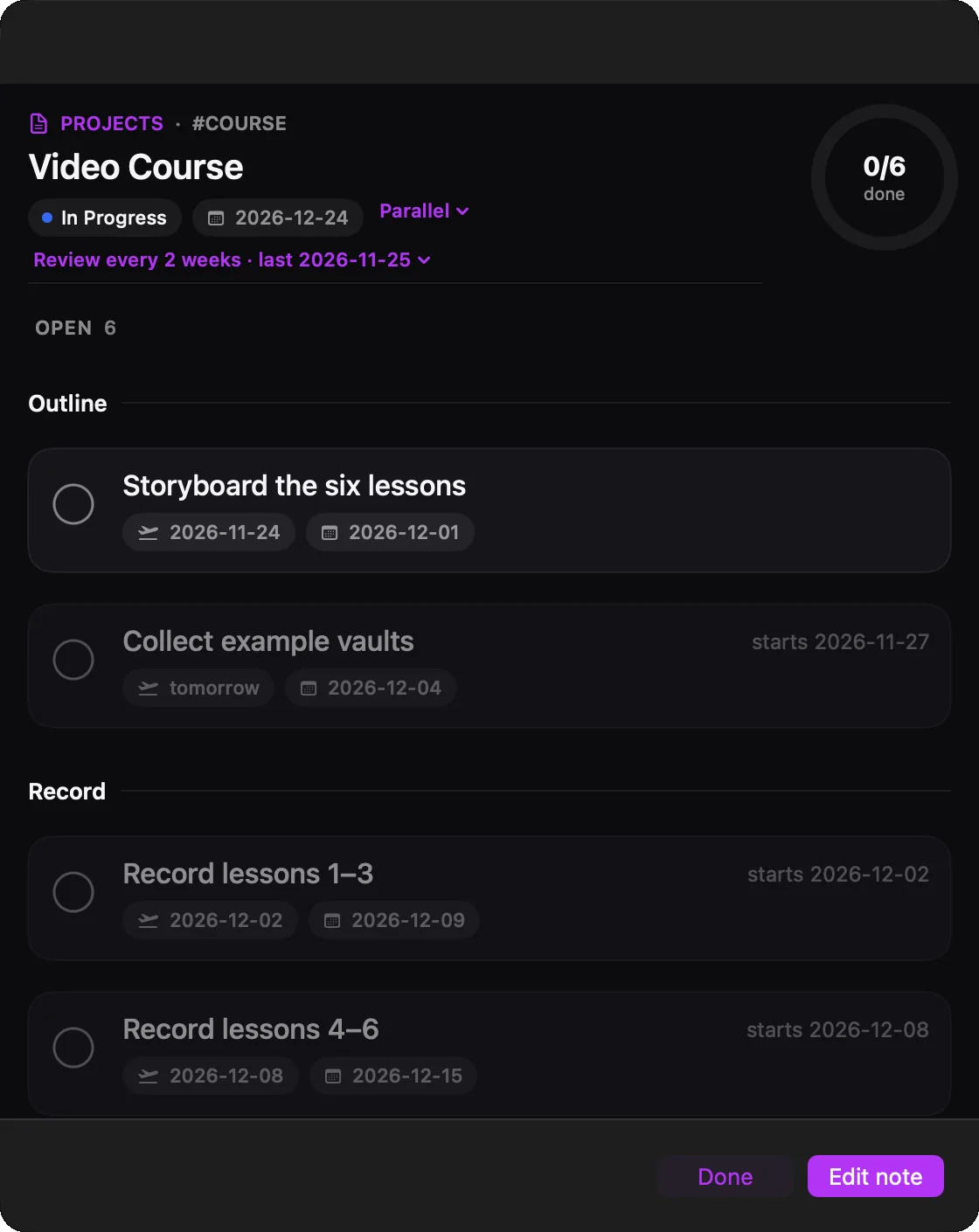
A project is just a note with a tag. Every task carrying that tag, anywhere in your vault, belongs to it.
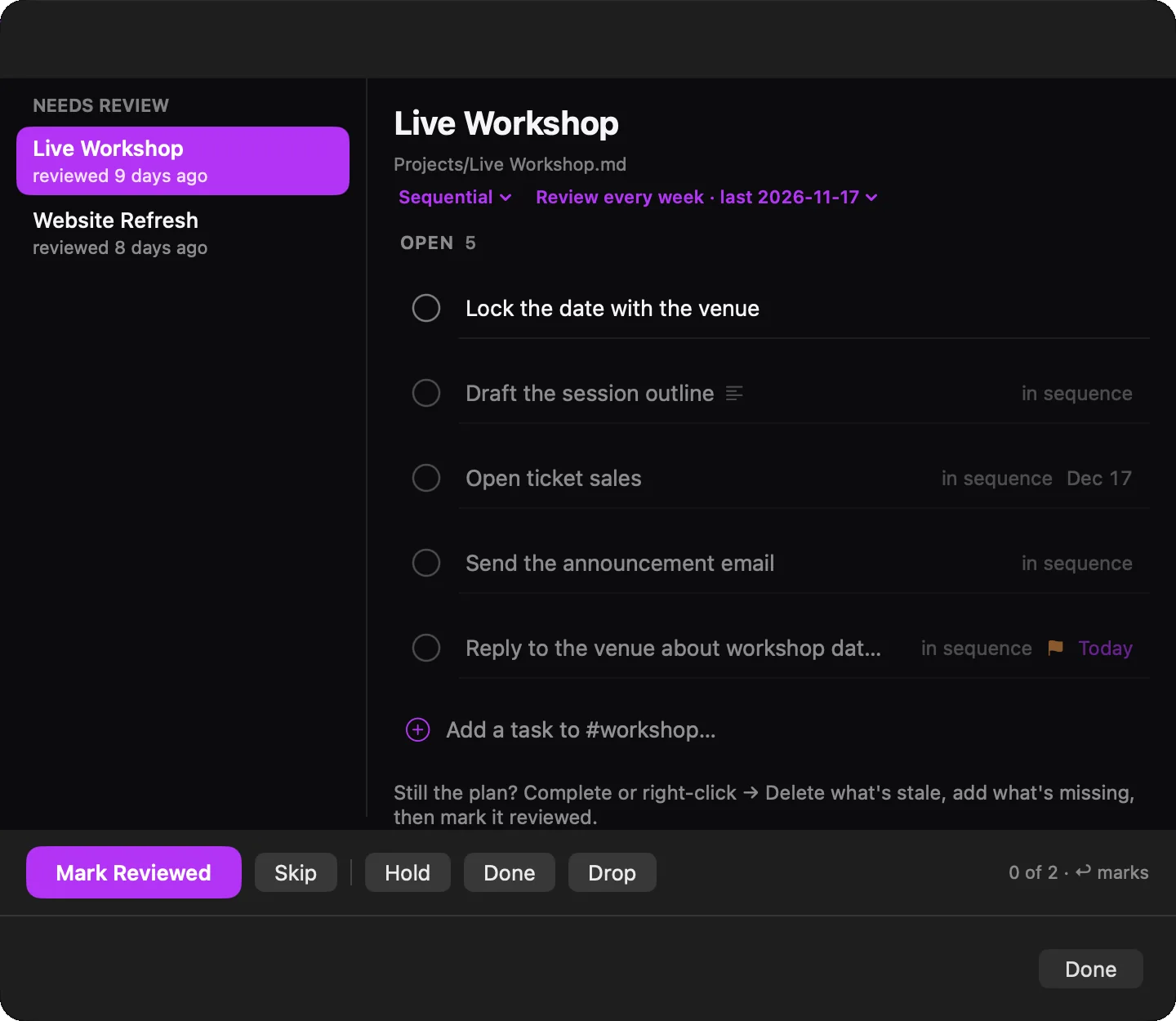
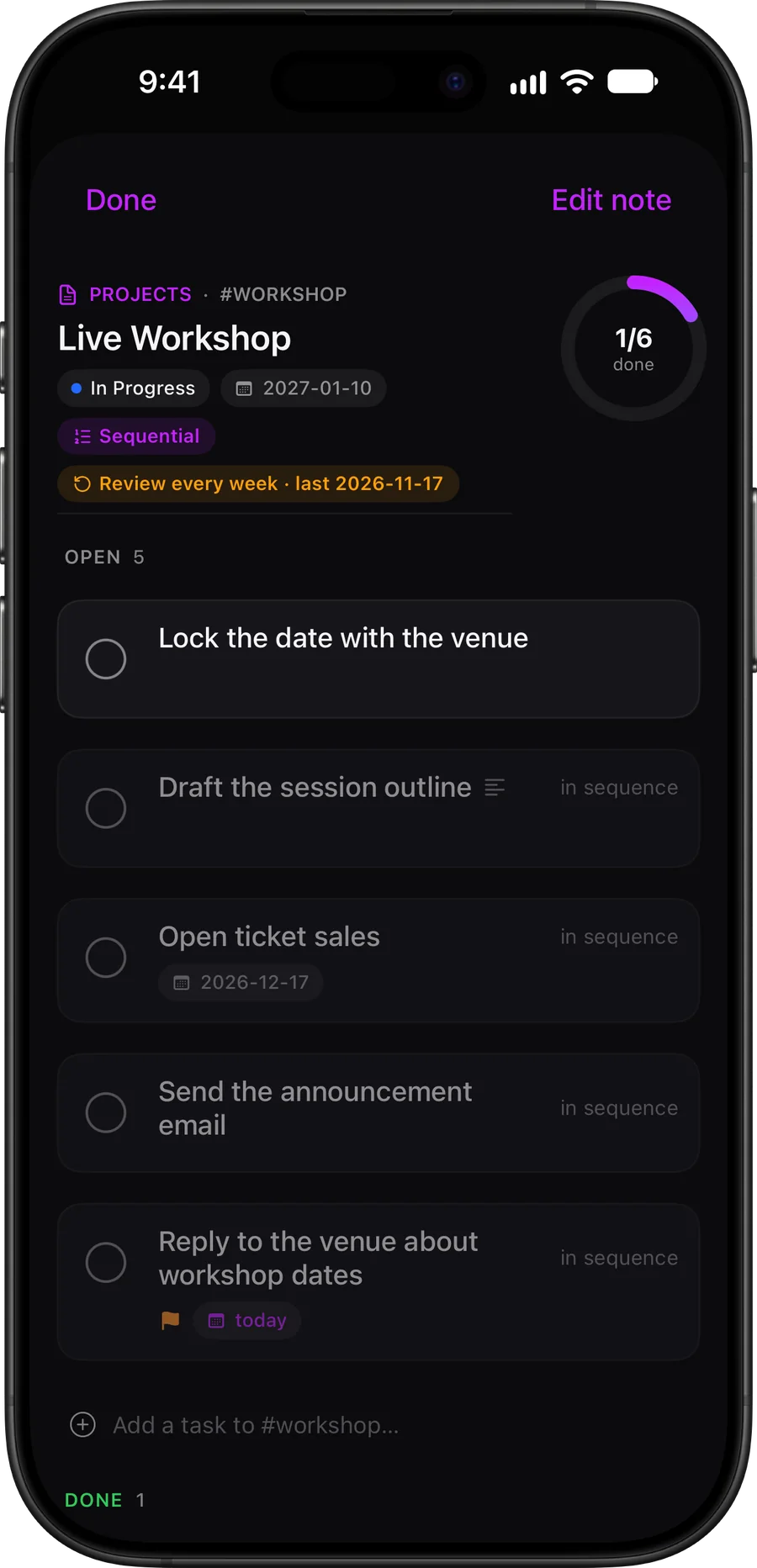
- Parallel, Sequential (only the next task is available) or Single Actions
- Project pages with a progress ring, open tasks under the note’s own headings, and tasks from elsewhere in the vault
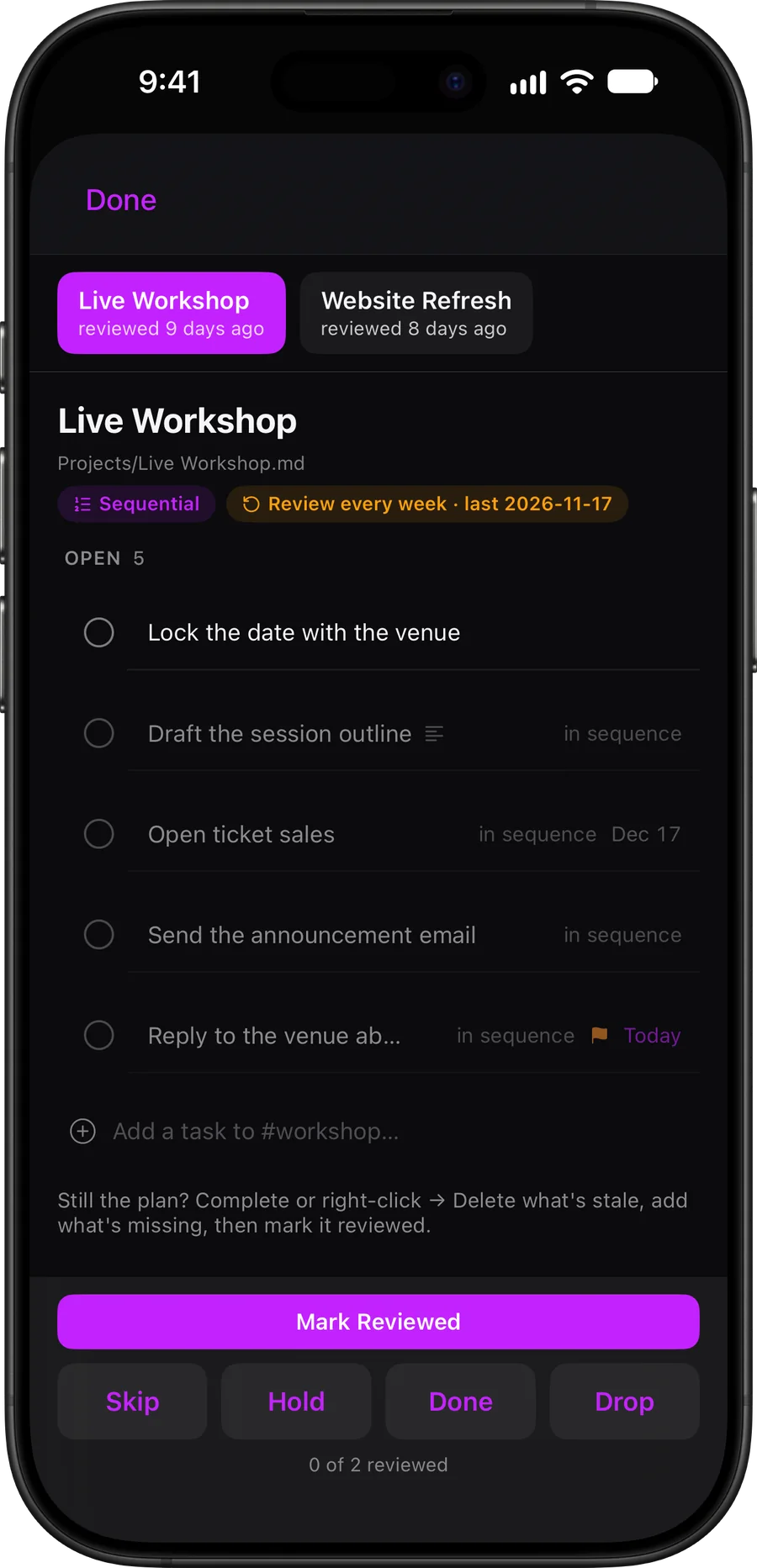
- Review on a cadence from every 3 days to every 3 months. Return marks it reviewed, H holds, D done, X drop
- Focus (⇧⌘F) narrows the whole app to one project: every view, count and Triage
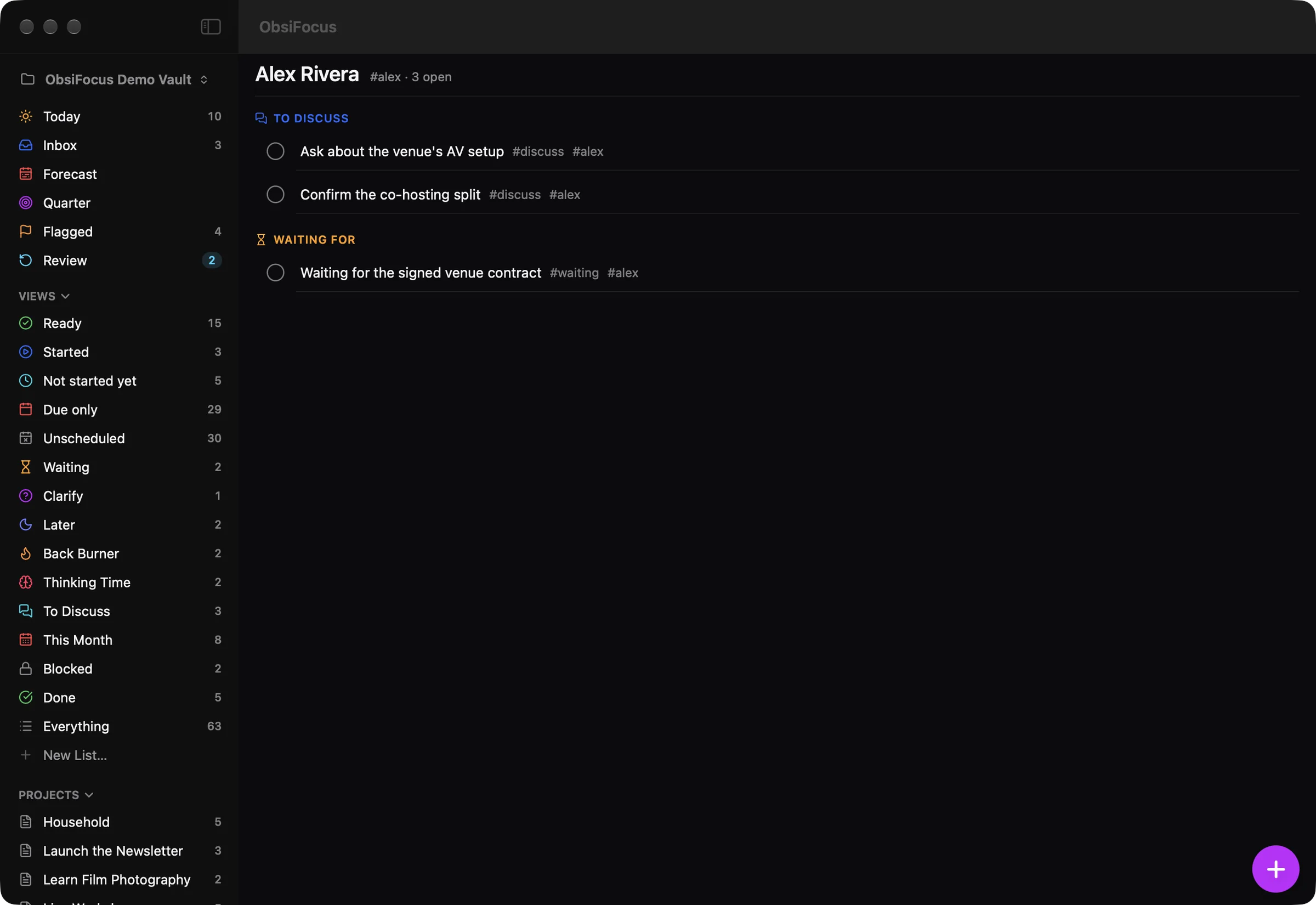
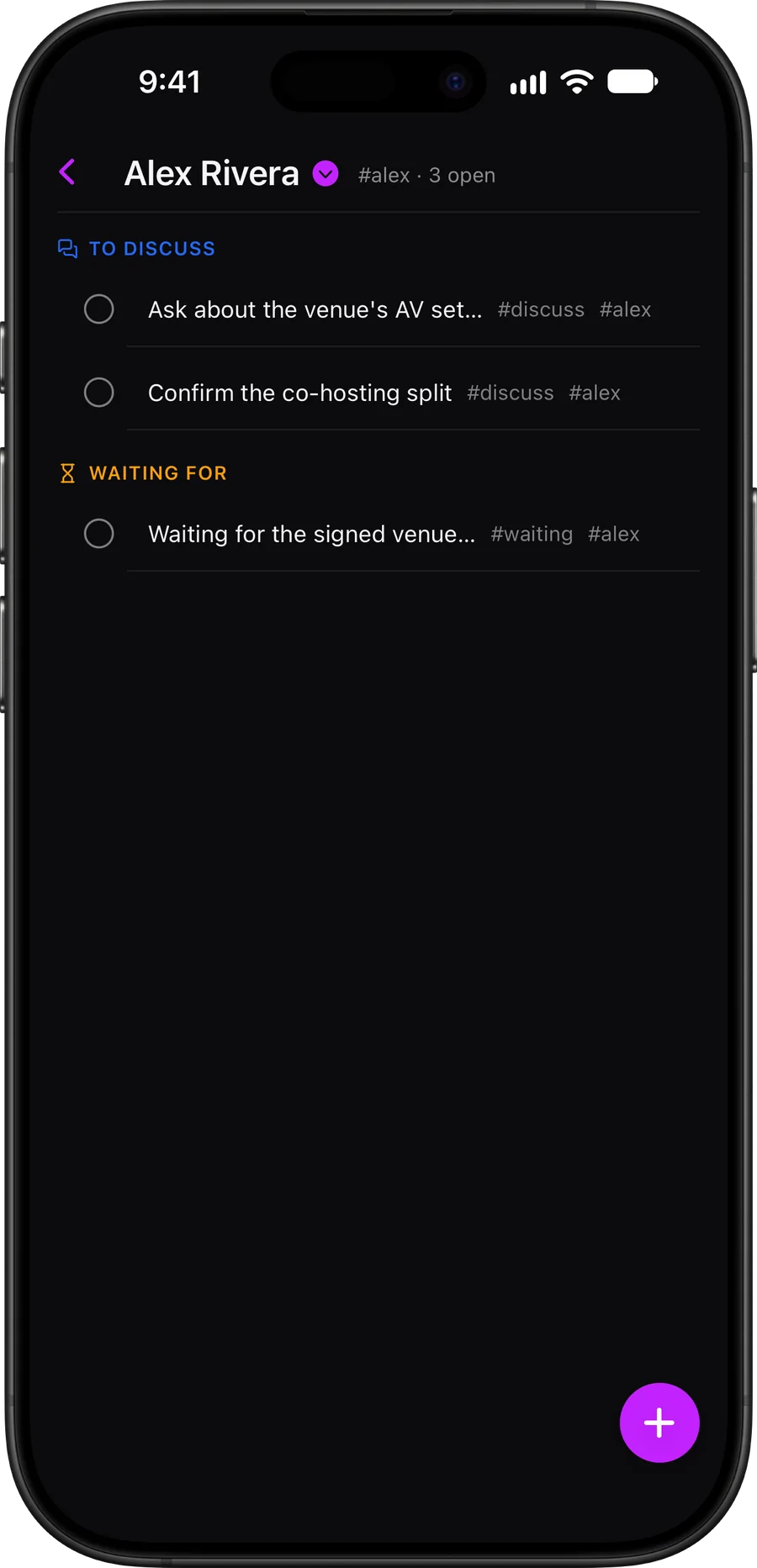
- Person pages gather what’s To Discuss, what you’re Waiting For, and everything else tagged with them
Quarter
Your Personal Retreat, brought to life.
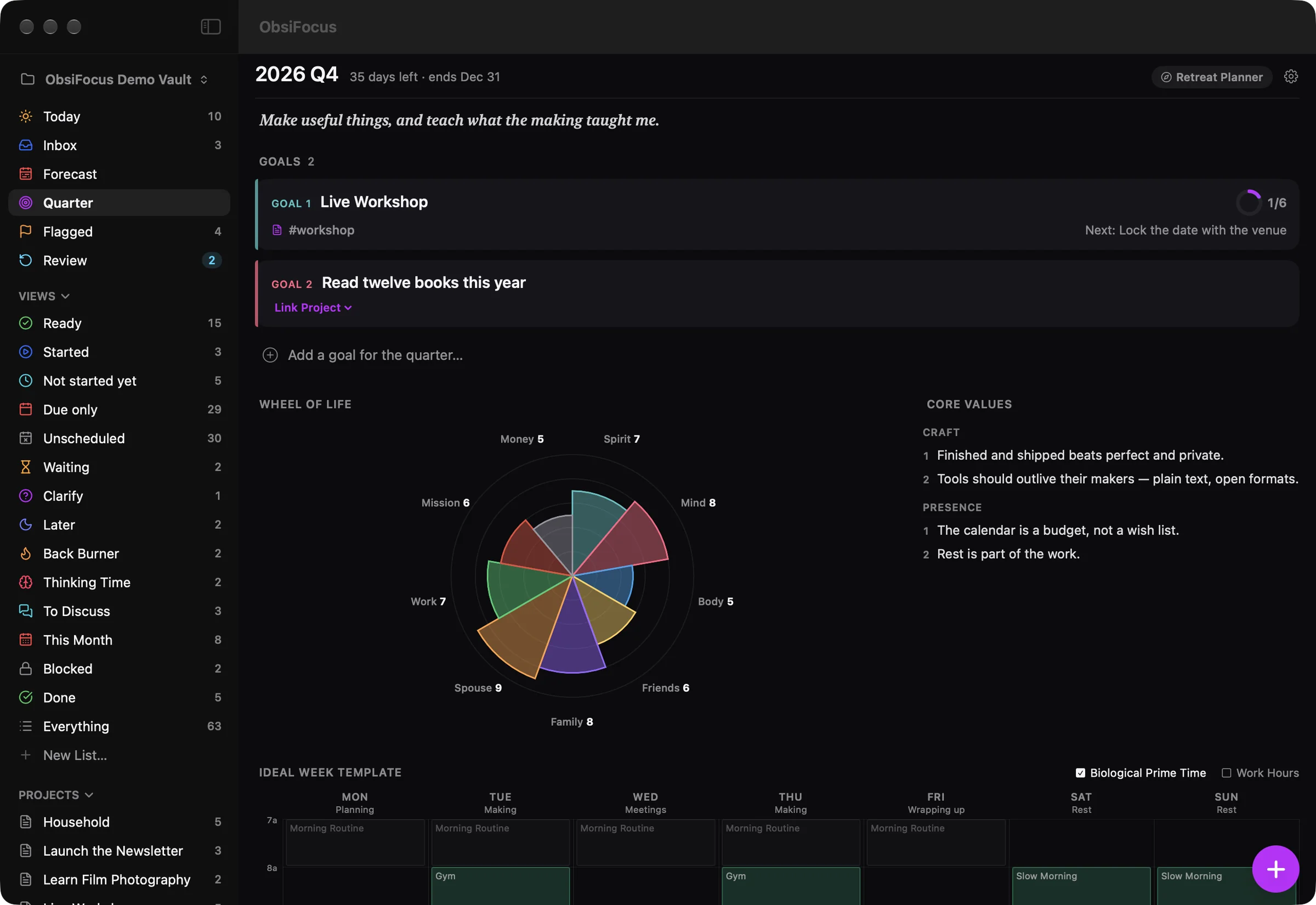
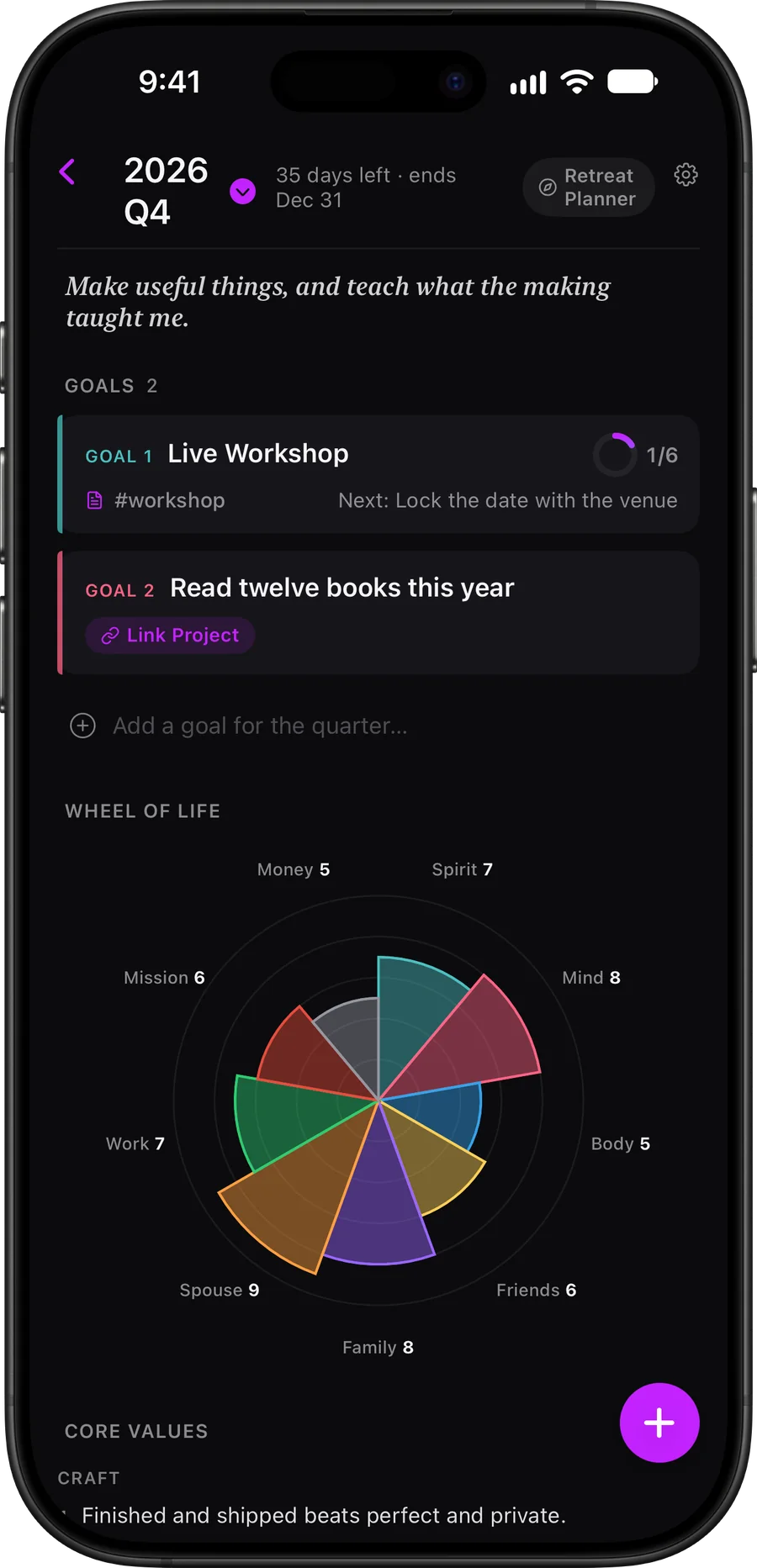
The Quarter dashboard reads your retreat note and turns it into a live plan: how many days are left, and how each goal’s project is moving.
Plan your quarter in the Retreat Planner, then send it straight to ObsiFocus.
- Your LifeTheme and core values, front and center
- Goal cards with live progress and the next available task of each linked project
- A Wheel of Life drawn from your retreat scores
- Your Ideal Week as a grid, with Biological Prime Time and work-hours shading
- Changes write back into the same notes
- Finish a retreat in the Retreat Planner and choose Send to ObsiFocus: it asks which quarter, can update your Ideal Week, and backs up any note it replaces. The retreat travels in the link, not through a server
Alarms
Alarms that nag until it’s done.
Give a task a day and a time. At that moment it starts nagging, with a notification every 5 minutes (or however often you like, from 1 to 60) until you complete it or snooze it.
- Complete it right from the notification. It’s written to your vault even if the app isn’t open
- Three snooze buttons you pick (10 minutes, 1 hour and 4 hours to start), plus Tomorrow
- Saved as plain text on the task line (⏳ day, ⏰ time), so every device sees the same alarm
- Dated tasks without an alarm don’t buzz one by one. They arrive together in one morning digest
- Optional place alarms on iPhone: when you arrive, or when you leave
Notes · Repeats · Waiting on
The details travel with the task.
Everything you add is saved in a form Obsidian already understands.
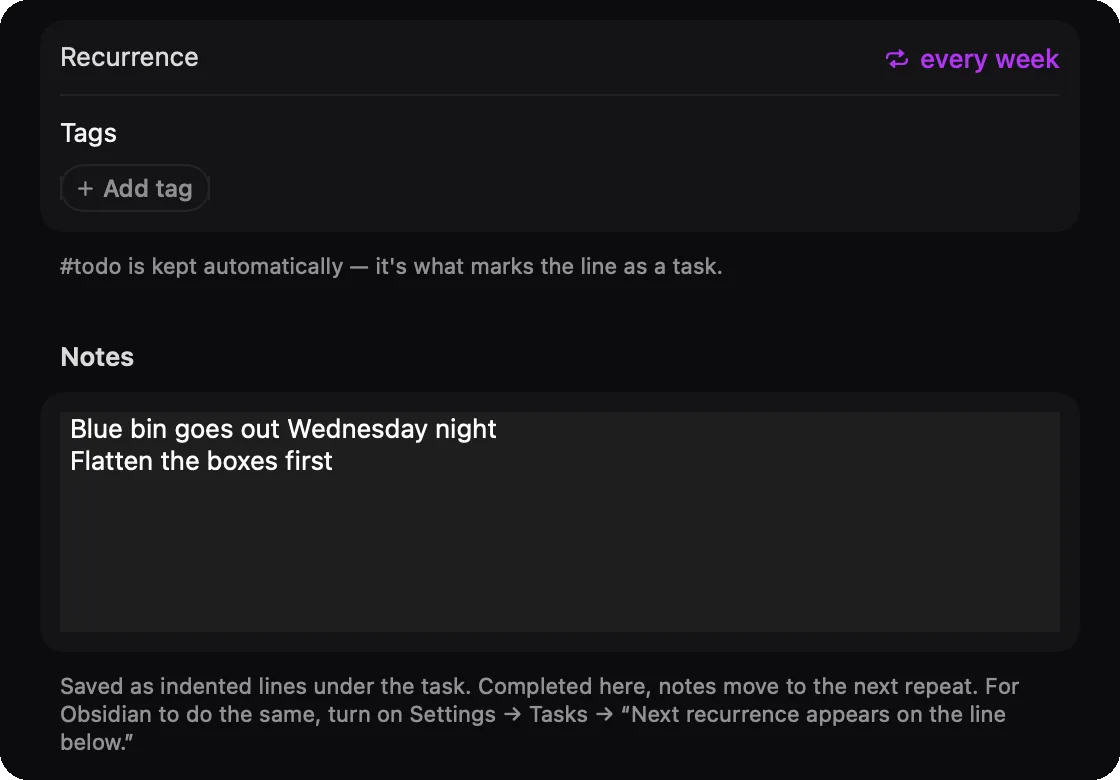
- Notes are saved as indented lines under the task, so they show up under it in Obsidian too
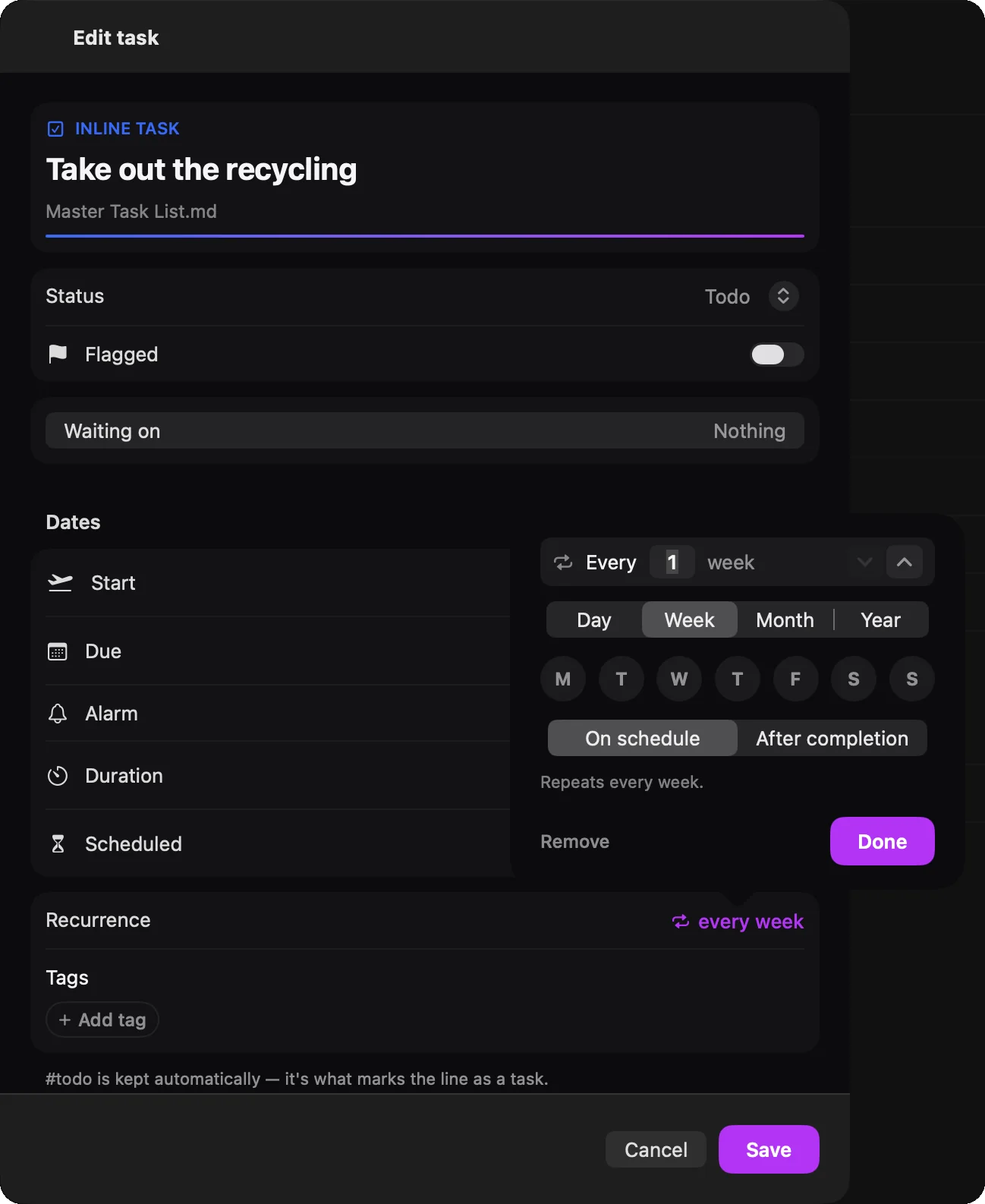
- Repeat every N days, weeks, months or years, on a fixed schedule or counted from when you finish
- Completing a repeat writes the next one the way the Tasks plugin does, and your notes move to it
- A repeating task note moves forward in place and keeps a list of the dates you finished it
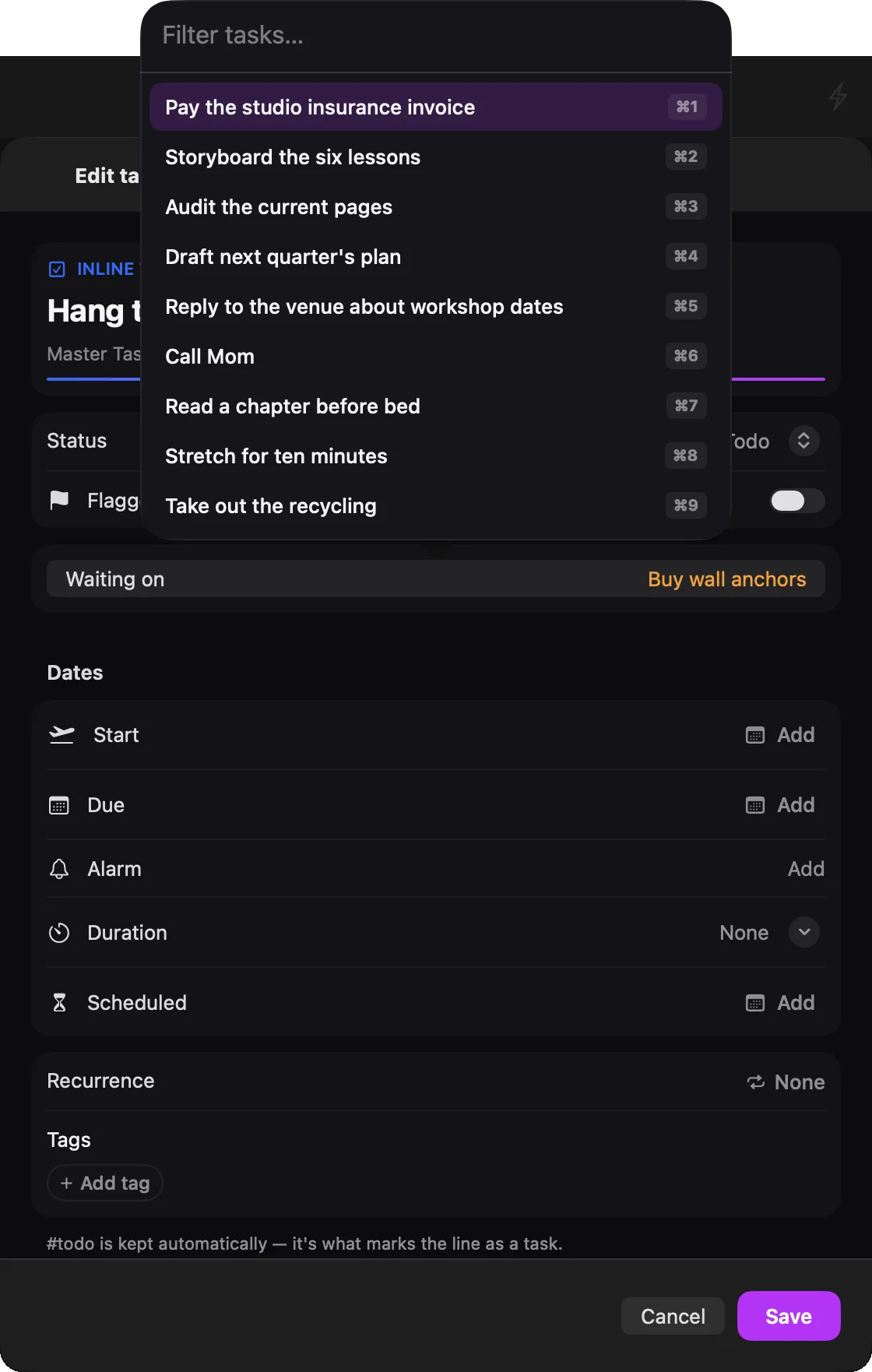
- Waiting on: pick the tasks this one is blocked by. It leaves Ready and shows in Blocked until they’re done
iPhone · Today widget
Your whole system, in your pocket.
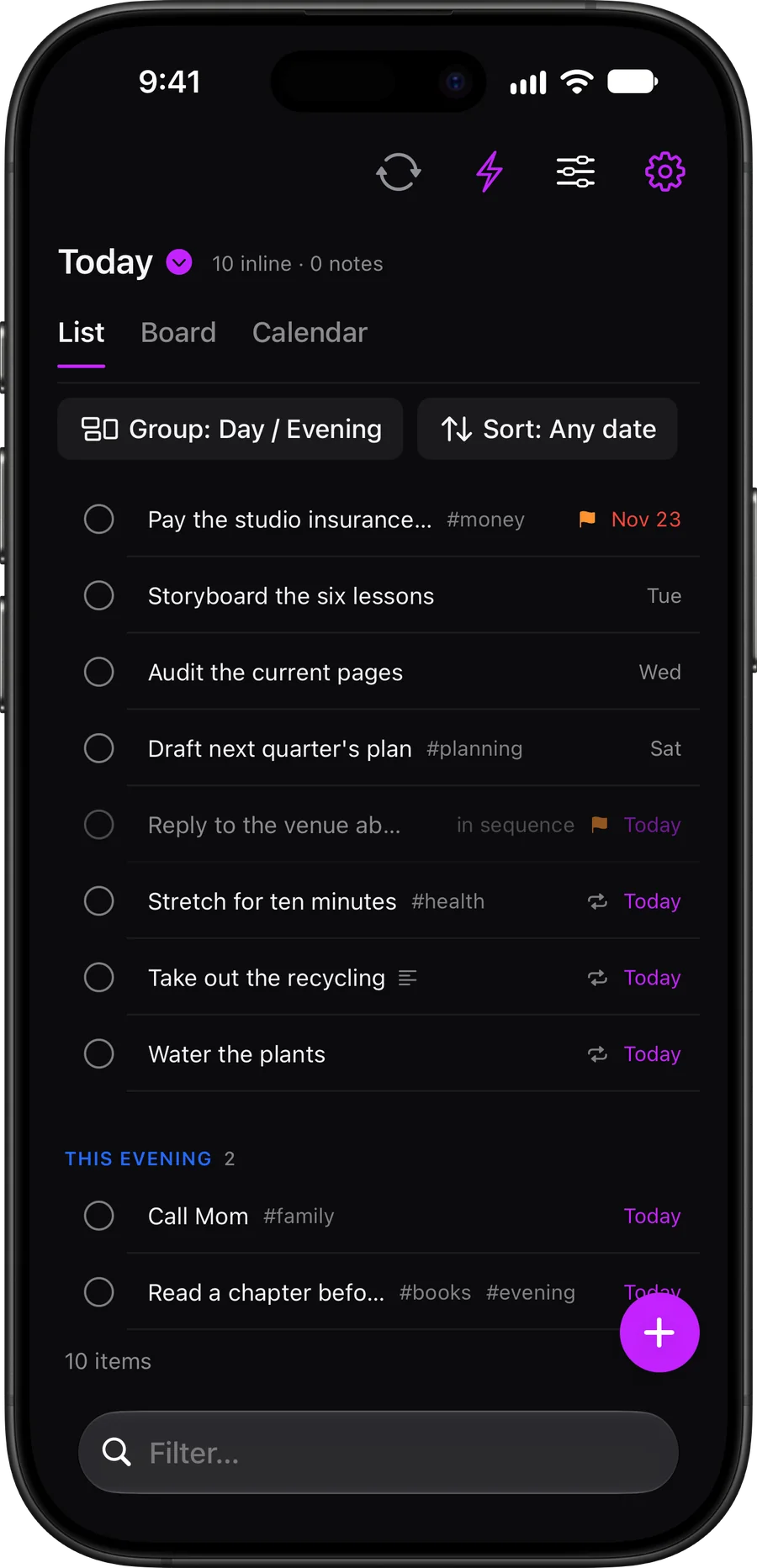
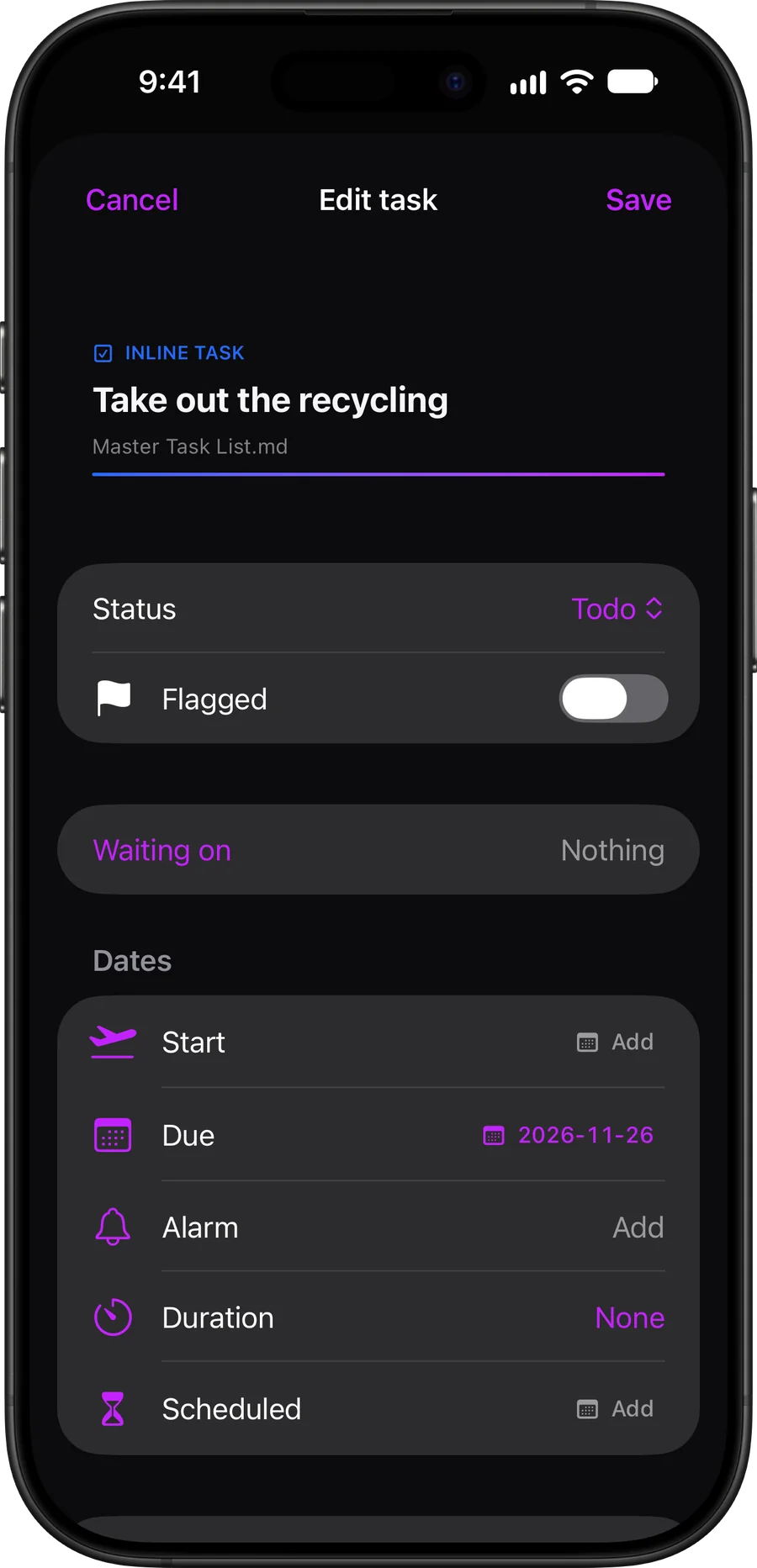
On iPhone, ObsiFocus reads the vault folder Obsidian Sync keeps current. It refreshes when you open it and in the background about every half hour. Every view works there too (Timeline stays on the Mac and iPad).
Swipes and shortcuts
- Swipe right to complete, left to flag. Keep pulling left to move it to This Evening
- Tap the view title to jump to any view, list, project or person
- Tap + for a new task, or keep your finger on it for a fan of Task, List and Project. Drag it wherever your thumb likes it
- Hold a row until it lifts, then drag it to reorder
- Siri and the Share sheet add tasks, which land in your vault the next time ObsiFocus opens
The Today widget
Overdue tasks first, then today’s. Tap a task’s circle to complete it right from your Home Screen.
- Small
- Overdue, today and flagged counts, plus 2 tasks
- Medium
- The counts plus 4 tasks, with alarm times
- Lock Screen circle
- Overdue + today count
- Lock Screen rectangle
- How many today, plus 2 tasks
Keyboard
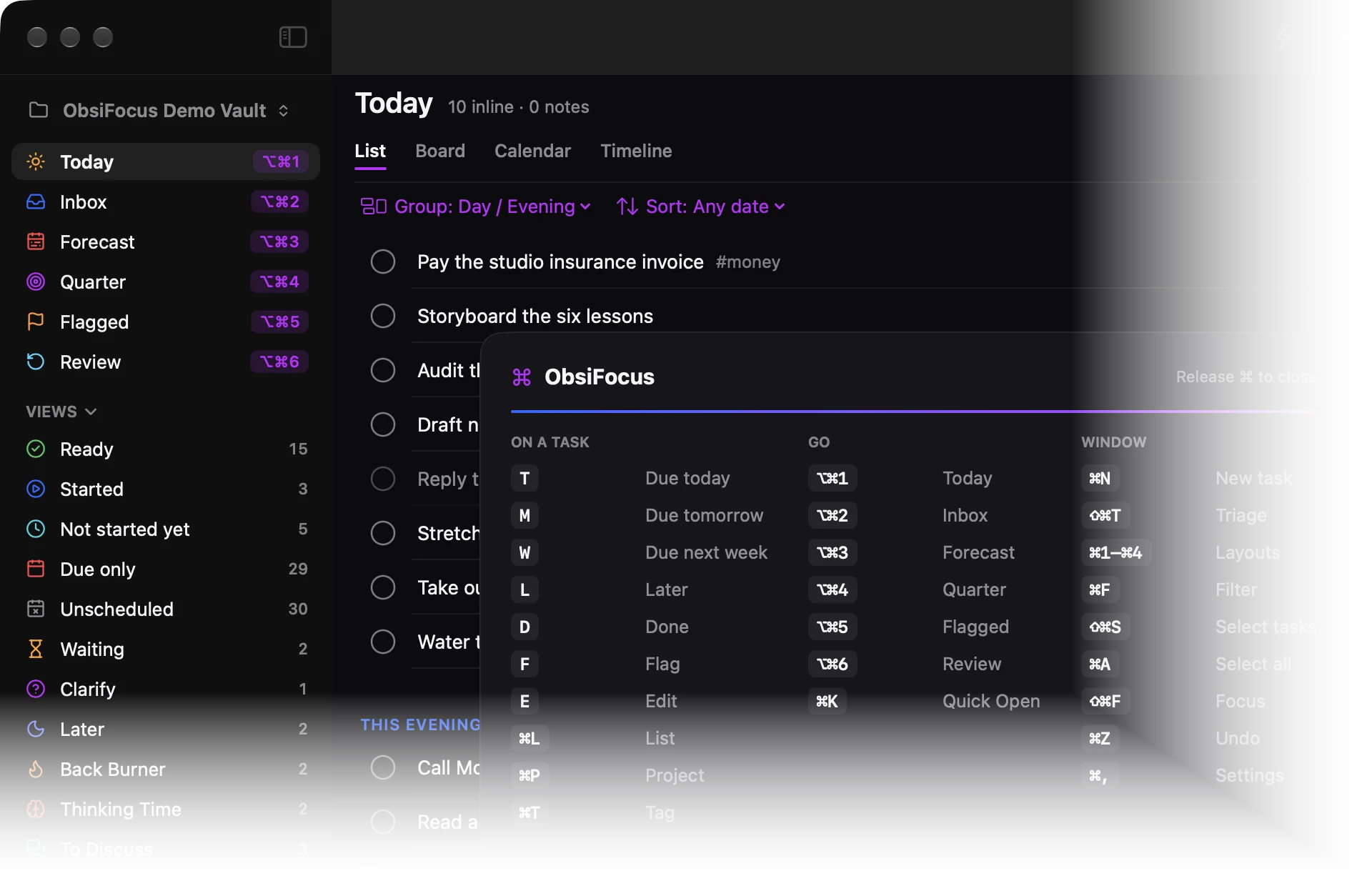
Hold ⌘ to see every shortcut.
Hold ⌘for a second and a card lists the shortcuts for whatever you’re looking at: the main window, Triage, Review or a new task. Let go to close it.
A bare letter acts on the task
⌘ + a letter opens a picker
The same keys mean the same thing in lists, Triage, Review and Capture. ⌘K jumps to any view, list, project or person.
Screenshots
On your Mac and your iPhone.
Every screenshot comes from the demo vault that ships with the app. Click one to see it full size.
How it works
Plain Markdown in. Plain Markdown out.
There’s no database and no sync service. ObsiFocus finds every task in your vault, and every change it makes (complete, reschedule, tag, add an alarm) is written back as plain text you can read in Obsidian.
Inline tasks: any checklist line with your global filter tag, in the Tasks plugin’s emoji format. Notes are the indented lines underneath.
- [ ] #todo Pay the studio insurance invoice ⏫ 📅 2026-11-23 #money
- [ ] #todo Call Mom ⏰ 18:30 📅 2026-11-26 #family
- [ ] #todo Take out the recycling 📅 2026-11-26 🔁 every week #house
  - Blue bin goes out the night before
    Flatten the boxes first
- [/] #todo Draft next quarter’s plan 🛫 2026-11-25 📅 2026-11-28 #planning
Task notes: whole notes, like articles or projects, with a status and dates in their properties.
---
status: inprogress
date: 2026-11-29
tags:
  - essay
---
Databases die with their apps.
Careful with your files
- Re-reads the file before every change and writes it in one step
- Refuses to overwrite a line you changed in Obsidian
- Backs up the original first, keeping the last 200 edits
- Retries a write that fails, so nothing is lost mid-sync
In step everywhere
- On the Mac it watches the vault, so edits in Obsidian appear within seconds
- Alarms, lists, manual order and board columns live in the vault and sync with it
- Projects are notes with a tag; people are notes in People/
- Quarter goals are headings in your retreat note
Try it without risk
- A demo vault with something in every view. Its dates move with today, so something’s always due
- Dry run reads your vault normally but writes nothing
- No Obsidian? Start fresh in iCloud Drive, one note per task
FAQ
Questions, answered.
Do I need Obsidian?
Tasks folder, with its status, dates, alarm and tags as properties at the top. If you open that folder in Obsidian later, ObsiFocus notices and its Obsidian buttons come back.Can I edit my tasks somewhere else?
Do I need the Tasks plugin?
#todo) and your custom statuses from its settings. You can also set the global filter yourself in Settings → Tasks.Will it find the tasks I already have?
Is it safe to point at my real vault?
How do my Mac and iPhone stay in sync?
What happens if I stop using it?
Does it work with LifeHQ?
Does it work on iPad?
All the power. None of the lock-in.
ObsiFocus for Mac and iPhone. Your tasks stay plain Markdown in your Obsidian vault.